Fedora 39/40 Switch Desktop Environment KDE Plasma To Gnome Shell

If you want to do the reverse operation and switch from Gnome Shell to KDE Plasma, I also have a blog post on that.

Replacing KDE Plasma on Fedora 39 requires only a couple of dnf and systemctl commands to convert the Fedora KDE spin into the Default Fedora Workstation with Gnome Shell. It might also work on earlier and later versions.

I have verified these steps on a fresh installation. Be sure to check the console output to avoid accidentally uninstalling any required software if you perform the desktop swap on a productive system.

Start with upgrading all packages. It is generally a good idea when performing such a massive system change.

sudo dnf upgrade

Next, you change the type of the Fedora installation. This is required because Fedora uses package groups and protected packages. You allow removing the KDE package groups by swapping them with the Gnome package groups.

$ sudo dnf swap fedora-release-identity-kde fedora-release-identity-workstation

Last metadata expiration check: 0:19:04 ago on Tue 02 Jan 2024 08:37:17 AM CET.
Dependencies resolved.
==============================================================================
 Package                              Architecture  Version  Repository  Size
==============================================================================
Installing:
 fedora-release-identity-workstation  noarch        39-30    fedora      11 k
Installing dependencies:
 fedora-release-workstation           noarch        39-30    fedora      8.2 k
Removing:
 fedora-release-identity-kde          noarch        39-34    @updates    1.9 k
Downgrading:
 fedora-release-common                noarch        39-30    fedora      18 k
 fedora-release-kde                   noarch        39-30    fedora      8.2 k

Transaction Summary
==============================================================================
Install    2 Packages
Remove     1 Package
Downgrade  2 Packages

Total download size: 45 k
Is this ok [y/N]:

And the second command.

$ sudo dnf swap fedora-release-kde fedora-release-workstation

Last metadata expiration check: 0:20:04 ago on Tue 02 Jan 2024 08:37:17 AM CET.
Package fedora-release-workstation-39-30.noarch is already installed.
Dependencies resolved.
==============================================================================
 Package                              Architecture  Version  Repository  Size
==============================================================================
Removing:
 fedora-release-kde                   noarch        39-30    @fedora     0  

Transaction Summary
==============================================================================
Remove  1 Package

Freed space: 0  
Is this ok [y/N]:

Next, fetch the Fedora Workstation packages and dump them on your storage drive (omitting output for brevity).

sudo dnf group install "Fedora Workstation"

Now that Gnome Shell packages are installed disable SDDM and enable the GDM login manager on boot.

sudo systemctl disable sddm
sudo systemctl enable gdm

At this point, I would log out or reboot and log into the Gnome Shell.

As the final step, you remove the KDE spin packages and the remaining stragglers.

sudo dnf group remove "KDE Plasma Workspaces"
sudo dnf remove *plasma*
sudo dnf remove kde-*
sudo dnf autoremove

Be careful not to mistype sudo dnf remove kde-*! If instruct dnf to remove kde*, it will catch more packages than you would like.

That is all there is to turn the Fedora KDE spin installation into the default Fedora Workstation with the Gnome Shell.

Read More »
Fedora 39/40 Switch Desktop Environment Gnome Shell To KDE Plasma

If you want to do the reverse operation and switch from KDE Plasma to the Gnome Shell, I also have a blog post on that.

Replacing the Gnome Shell on Fedora 39 requires only a couple of dnf and systemctl commands to convert the default Fedora Workstation into the KDE spin. It might also work on earlier and later versions.

I have verified these steps on a fresh installation. Be sure to check the console output to avoid accidentally uninstalling any required software if you perform the desktop swap on a productive system.

Start with upgrading all packages. It is generally a good idea when performing such a massive system change.

sudo dnf upgrade

Next, you change the type of the Fedora installation. This is required because Fedora uses package groups and protected packages. You allow removing the Gnome package groups by swapping them with the KDE package groups.

sudo dnf swap fedora-release-identity-workstation fedora-release-identity-kde

And the second command.

sudo dnf swap fedora-release-workstation fedora-release-kde

Next, fetch the KDE spin packages and dump them on your storage drive (omitting output for brevity).

sudo dnf group install "KDE Plasma Workspaces"

Now that KDE packages are installed disable GDM and enable the SDDM login manager on boot.

sudo systemctl disable gdm
sudo systemctl enable sddm

At this point, I would log out or reboot and log into the KDE session.

As the final step, you remove the Fedora Gnome packages and the remaining stragglers.

sudo dnf group remove "Fedora Workstation"
sudo dnf remove *gnome*
sudo dnf autoremove

That is all there is to turn the default Fedora Gnome installation into the Fedora KDE spin.

Read More »

Apple Silicon M1 for Software Development: Java, C++ with Qt

Apple’s laptops have been making quite the splash since the end of 2020 and have made a massive comeback as a professional tool one year later with the M1 Pro and Max designs. Most of the reviews I have seen focus on the editing and rendering capabilities of these new MacBooks. A few reviewers throw a compile test in the mix, but compiling Chromium or any other huge project is only a part of the equation. Developers don’t just compile code; they also use tools and IDEs to develop their software.

Being new to the M1 world, I wanted to recap my experiences so far briefly. I use Java professionally, and I also have a C++ application based on the Qt framework that I wrote an eon ago and still use productively. Being a former C++ professional, I am about native performance, and I like native software. Therefore, I intended to utilize as many Apple Silicon-native tools as possible. Luckily, one year after its release to the desktop world, the most popular applications have caught up. Let me go through my tool suite one by one.

Read More »

Windows 11 Host VirtualBox Install Error “This app can’t run because it causes security or performance issues”

I have recently upgraded to Windows 11 out of curiosity. Despite the more or less negative first impression, I decided to continue to use it. One of the first applications I install is VirtualBox to try out different Linux flavors and stay current in that world. To my surprise, the VirtualBox installer (version 6.1.26) would not start. Windows was complaining about issues with this software.

> This app can’t run because it causes security or performance issues > on Windows. A new version may be available. Check with your software > provider for an updated version that runs on this version of > Windows.

Well, I checked because it was the latest version of VirtualBox. I found hints on the Internet that VirtualBox does run on Windows 11, albeit without indicating what these persons had done.

A little bit discouraged, I clicked the "Learn more" button. You never know; it might actually be helpful – or a complete waste of time. In this instance, it was of great help. It redirected me to the following Microsoft page discussing the "A driver can’t load on this device issue". It also contains a very convenient link to the corresponding location in the Windows Defender application. Somehow I cannot reproduce that link for your convenience so you must visit Microsoft’s site yourself.

Be aware. There may be a security risk associated with disabling this setting. I have not yet dug deeper to ascertain the whole picture. I figured it must have been disabled or not existed on Windows 10 at all, and I was fine there. Windows will ask you several times to grant administrative rights to perform the operation and require a reboot.

After that, VirtualBox was installed and ran just fine.

Curious, I wondered if I could disable the setting once VirtualBox was installed.

Well, I could not. Windows will try and fail. If you click "Review incompatible drivers", it will show you which component prevents the change. And sure enough, it is VirtualBox.

We will see if Oracle’s VirtualBox team can figure this out, but I would assume so. For now, this works for me.

I hope this has helped you. Thank you for reading.

Windows 11 First Look at New Visual Design – Not Yet a Fan

Thanks to a recent article by Paul Thurrott, I finally convinced myself to give Windows 11 a try. I was hesitant at first because of all the negative information regarding some of Microsoft’s choices – and I do not mean Secure Boot and TPM. I was not sure if I wanted to support this behavior. Be that as it may, maybe a topic for another day, what finally convinced me was the fact that Secure Boot must not even be enabled. It is enough that the system supports it. This means I can still run a Linux installation in parallel, which I did not want to give up easily.

You must understand that these are really only first impressions. I have not spent hours upon hours with Windows 11 and dug deep into the system. It boils down to an opinion on the visual presentation, the most glaring change compared to Windows 10. Teaser: I do have some mixed feelings about it.

Read More »

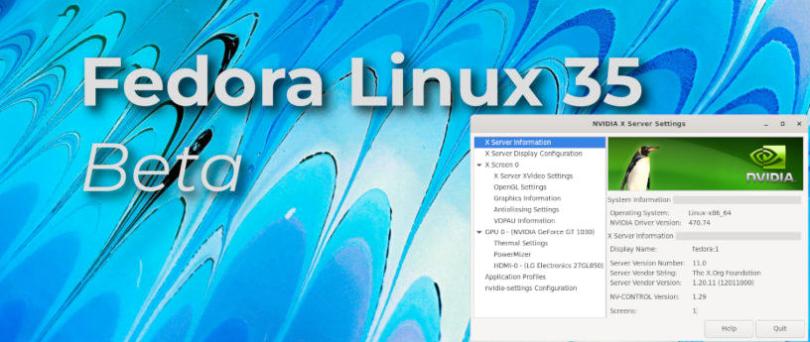
Fedora Linux 35 Beta Install NVIDIA Driver (Works on Fedora 36 Too)

This is a quick one because the installation works in the same way as it did in Fedora 34.

First, I added the RPM Fusion repositories as described here.

sudo dnf install \
  https://download1.rpmfusion.org/free/fedora/rpmfusion-free-release-$(rpm -E %fedora).noarch.rpm
sudo dnf install \
  https://download1.rpmfusion.org/nonfree/fedora/rpmfusion-nonfree-release-$(rpm -E %fedora).noarch.rpm

Next, I installed the akmod-nvidia package like it is explained on this page.

sudo dnf update
sudo dnf install akmod-nvidia

One reboot later, the NVIDIA module was up and running.

$ lsmod | grep nvidia
nvidia_drm             69632  4
nvidia_modeset       1200128  8 nvidia_drm
nvidia              35332096  408 nvidia_modeset
drm_kms_helper        303104  1 nvidia_drm
drm                   630784  8 drm_kms_helper,nvidia,nvidia_drm

For completeness: my computer has an NVIDIA GT1030.

I hope this helped you, and thank you for reading.

KDE Plasma Remap Meta/Windows Key From App Launcher to KRunner

Sometimes I want to run applications that I do not have pinned to the quick-launch bar of my choice’s operating system/desktop environment. To do that, I am used to pressing the Windows/Meta Key, begin typing a few characters, and hit Enter. This is muscle memory and hard to get rid of. Although it does not matter which UI opens, I do not need the full-blown KDE Application Launcher, Gnome Shell, or Windows Start Menu. The amount of UI that pops up and changes while searching for the app is distracting.

Therefore, I wondered whether I could remap the Meta/Windows key from opening the Application Launcher to opening KRunner. And you can, but only on the command line.

Remove the key mapping from the Application Launcher.

kwriteconfig5 --file kwinrc --group ModifierOnlyShortcuts --key Meta ""

Open KRunner instead.

kwriteconfig5 --file kwinrc --group ModifierOnlyShortcuts --key Meta "org.kde.krunner,/App,,toggleDisplay"

Apply the changes to the current session.

qdbus org.kde.KWin /KWin reconfigure

I hope this helps you. Thank you for reading.

Right to Repair: Do Not Forget Firmware

Early July 2021, US president Joe Biden signed an executive order strengthening the right to repair in America. It is all the rage in the YouTuber space. Over here in Europe, the European Parliament is also working on encouraging reuse and repair to save on resources (Ecodesign Requirements, Grant EU Consumers Right to Repair, Europe Reduce Waste by Guaranteeing Right to Repair). However, I do not think the movement is as strong as in the US, based on my perception of the media coverage. I had to actively search for information rather than having it thrown at me by media outlets, old-school and modern alike.

Disclaimer: This might just be my way of looking for and consuming information. I strongly prefer non-German modern tech media (read YouTube creators) because I am yet to find one that produces at the same level of production quality as someone like Linus Media Group, as one example. I watch German news, though, so I am not entirely ignoring my own country 😉

Now, the topic of this post is not where I get my information or how far the current state of legislation has come everywhere in the world.

I know that "Right to Repair" goes way beyond smartphones and computers. My focus is on consumer technology because that is where my interests are.

I want to talk about the software that runs on the hardware since it is just as important to a product’s lifetime. Washing machines and similar household appliances are becoming "smarter and smarter" with every new generation, so it is no longer just phones and tablets. Together with mobile computers, the latter two categories are likely what everybody interested in tech immediately thinks about when hearing "Right to Repair".

Read More »

Customize Nautilus Default Bookmarks

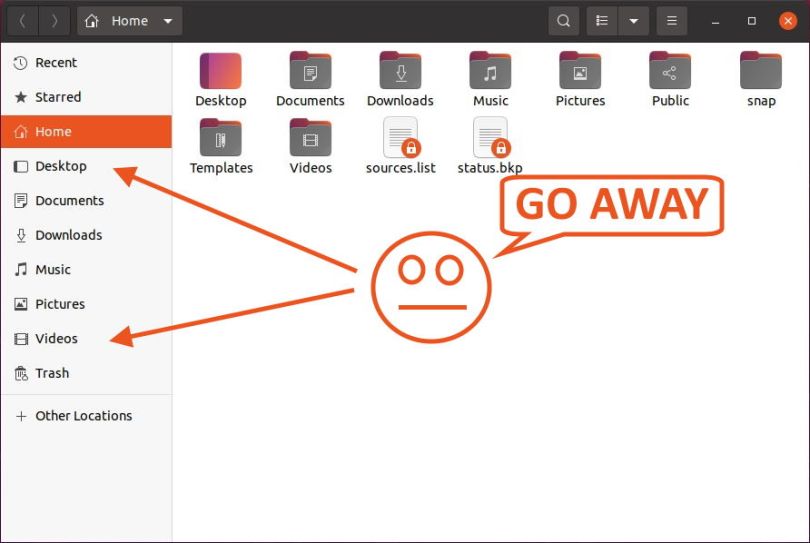
Nautilus is the default file manager in basically all Gnome-based distributions. I wonder why I cannot configure the default Bookmarks in the left panel through a context menu with that wide adoption. Is there no demand?

I managed to achieve my goal by editing two files. One is for the user, and the other one is a system file. I have not tried multiple user accounts, but I assume it affects everyone that uses the computer.

I wanted to remove "Desktop", "Public", "Templates", and "Video" because I never need that. What I ended up doing was to also change the location of "Documents", "Music", and "Pictures" to point to their respective OneDrive equivalents. That saves me from creating symbolic links, as I have explained in one of my OneDrive posts.

First, the user file.

vim ~/.config/user-dirs.dirs

#XDG_DESKTOP_DIR="$HOME/Desktop"
XDG_DOWNLOAD_DIR="$HOME/Downloads"
#XDG_TEMPLATES_DIR="$HOME/Templates"
#XDG_PUBLICSHARE_DIR="$HOME/Public"
XDG_DOCUMENTS_DIR="$HOME/OneDrive/Files"
XDG_MUSIC_DIR="$HOME/OneDrive/Music"
XDG_PICTURES_DIR="$HOME/OneDrive/Pictures"
#XDG_VIDEOS_DIR="$HOME/Videos"

Next, the system file. If you only remove entries from the user file, they will be added again the next time you log in. My tests showed that it is enough to customize the location in the user file. The other way around does not work, however.

sudo vim /etc/xdg/user-dirs.defaults

#DESKTOP=Desktop
DOWNLOAD=Downloads
#TEMPLATES=Templates
#PUBLICSHARE=Public
DOCUMENTS=Files
MUSIC=Music
PICTURES=Pictures
#VIDEOS=Videos
# Another alternative is:
#MUSIC=Documents/Music
#PICTURES=Documents/Pictures
#VIDEOS=Documents/Videos

Finally, you need to log out and log in again for this change to take effect.

I hope this helps. Thank you for reading.

OneDrive Sync On Linux Part 3, With abraunegg/onedrive As Daemon

In a previous blog post, I showed another way of syncing OneDrive folders on Linux as an alternative to using RCLONE. It was the Open-Source project “onedrive” by Github user “abraunegg” (a fork of an abandoned project by user “skilion”). One thing I was having trouble with was the installation as a daemon. I used an @reboot crontab workaround to achieve my goal instead. However, I was not satisfied, so I went back to the documentation to see if I missed something. And miss I did. To my defense, other steps I had tried are omitting a necessary detail required to make it work.

I have mentioned the installation in the other post, but I also left out a thing or two that I came across. That is why I will include the setup process again, this time in more detail, and refer you to the other blog post for configuration tips. That is the part I will skip here.

My test system is the same Fedora 34 distribution, and I have also tested the steps on Pop!_OS, which means it should work on the other Ubuntu derivates.

Read More »

OneDrive Sync On Linux Part 2, With abraunegg/onedrive

Edit: There is a part 3 that solves the daemon problem.

It has been about a year since my first blog post about syncing Microsoft’s OneDrive cloud storage on Linux. The last time around, I used RCLONE, which required a more hands-on approach. I have found a new tool that I think is better because it can sync automatically in the background without scripting or manually hacking. It is aptly called onedrive that you can find on Github.

Its name might suggest that Microsoft finally ported their Windows and Mac clients to Linux, but, unfortunately, that is not the case. I would still like to see this happen, and if there is ever a time for Microsoft to do it, it is probably now.

Let me briefly explain how I have installed and configured the onedrive tool to suit my needs. Thanks to good default values, it is straightforward, and you might not need any configuration at all.

(I wonder how I managed to not find this tool a year ago)

Read More »

Xbox Series S – Is It Any Good Or Do You Need a Series X?

In a recent blog post (that I somehow accidentally deleted; thank you to WordPress for having a Trashed section from which you can restore), I already summarized my first impressions of the smaller variant of the new Xbox consoles, the Series S. Now that I have had the Xbox Series S for a couple of months, it is about time that I go into more detail.

There are a few reasons why I bought the Series S:

  • Overall hardware shortage, especially GPUs because I wanted a PC upgrade
  • The Series X was available nowhere or only overpriced (even worse for PlayStation)
  • It was the only console of the new generation available in Germany for MSRP

Before I took the plunge, I was very conscious about what to expect. I watch Digital Foundry videos regularly where their team investigates the performance and target resolutions of many console games, old and new, among other things. From my experience with connecting my PC to my 4K TV, I was confident that a resolution of 1080p is actually good enough for me to enjoy a game. Sure, I can see the difference to 4K. But my TV does an excellent job of upscaling, and the picture does not wash out and become a blurry mess. Therefore, the Series S should not disappoint. And it didn’t. There is a caveat, though, and I will address it in a later section of this probably pretty long wall of text that is going to come.

Read More »

Delete Windows System Folders From Former OS Drive

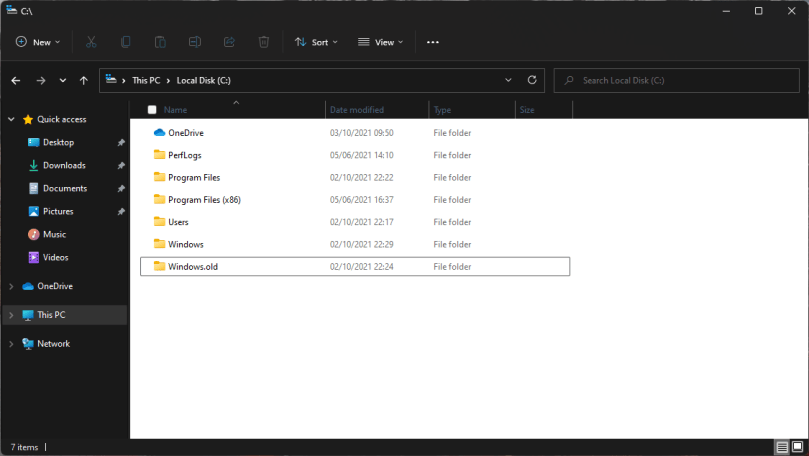
I demoted a former Windows OS drive to a data drive recently without formatting it. The SSD still contained my OneDrive folder, and I did not want to download it again or copy it from a backup. Therefore, all of the Windows system folders were still on the drive. I tried to delete them, but whatever I did using the GUI, Windows slapped my fingers. I was not able to remove the Program Files and Windows folder.

There is a solution using the command line, though. You must execute all commands in an Administrator command prompt.

Example for the Program Files directory.

takeown /f "Z:\Program Files" /a /r /d Y
icacls "Z:\Program Files" /t /grant administrators:F
rd /s /q "Z:\Program Files"

Gotcha: I have noticed that I had to execute the statements a second time on some folders to delete them finally.

An exception is the Windows directory. It cannot be removed using these commands. I have found another workaround that tricks Windows into believing it is a previous Windows installation. Rename the Windows directory to “Windows.old” and then run Disk Cleanup -> Clean up system files. Windows will detect this as an old installation and offer to remove it.

Documentation

  • takeown
    • /f – Path to folder
    • /a – Give ownership to Administrators group
    • /r – Recursive
    • /d Y – Do not require confirmation
  • icacls
    • /t – “Recursive”
    • /grant – Replace previous permission with new owner and full access (:F)
  • rd
    • /s – Recursive
    • /q – Quiet mode, do not require confirmation

Disable Banners on Sony Android TV (2019 Model)

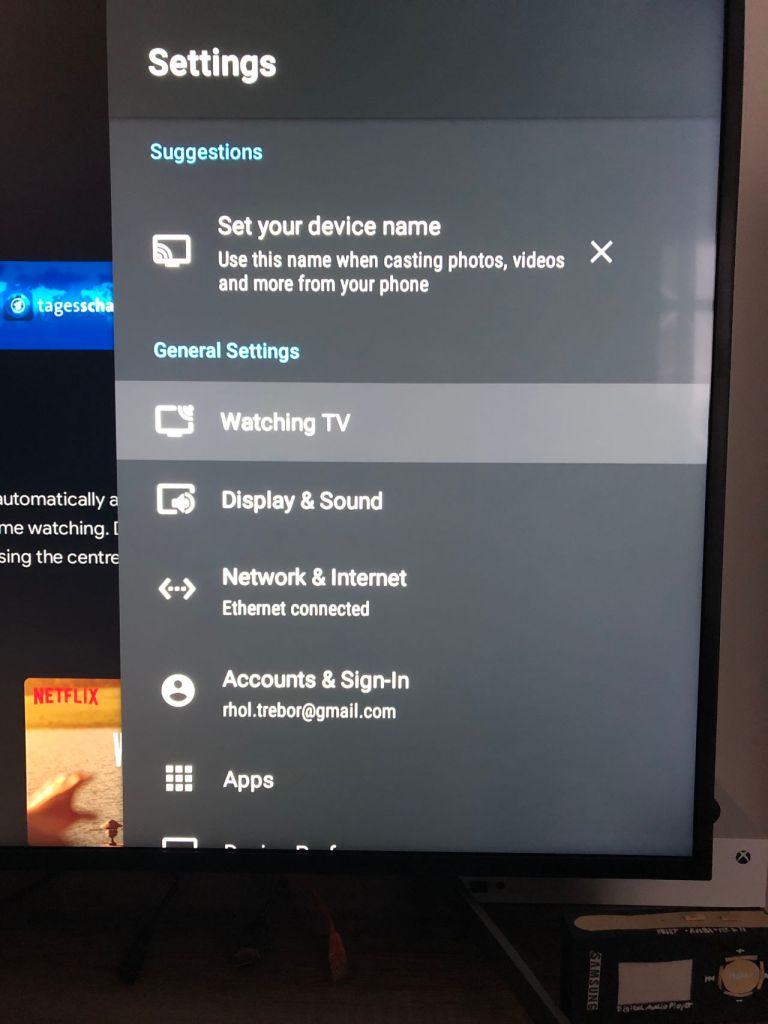
I’ll try to make this quick. I started gaming on my 2019 Sony Android TV, and it frequently displayed a banner at the top with connection and resolution information. I hate when things constantly pop up, but it also blocked a pretty large portion of the screen. After some research, I found references about older versions of the operating system where Banners have their own menu item. Not on my TV, though, and I was starting to become very frustrated.

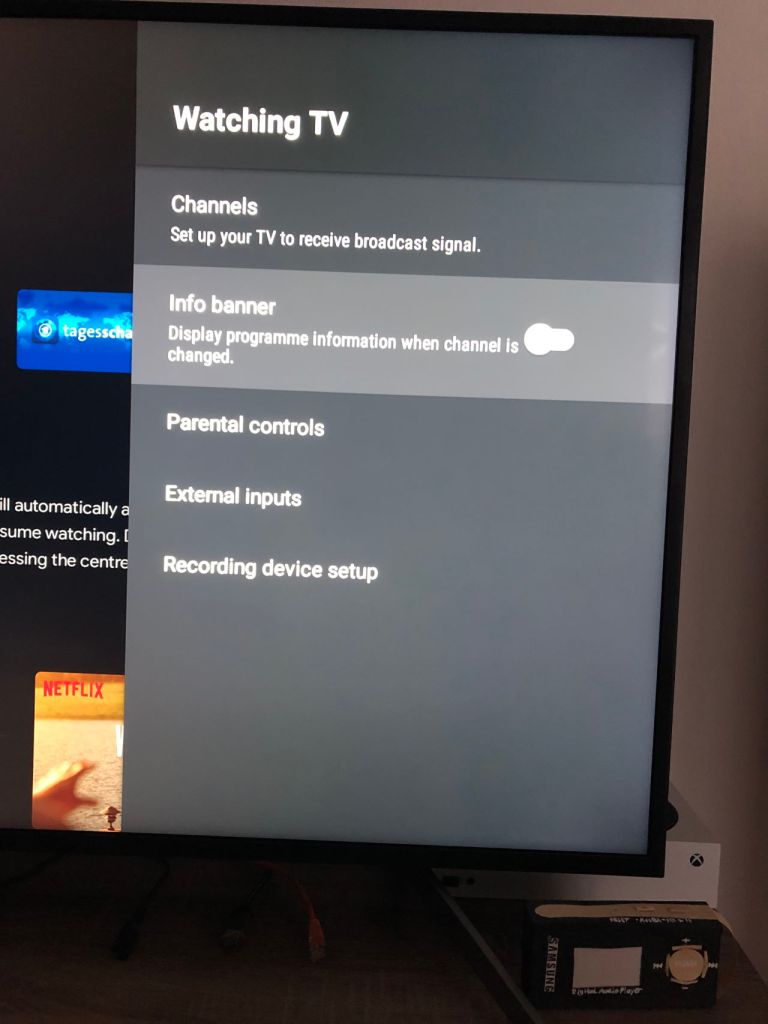
The option is there! It is in a location where I did not expect it. Open the settings and navigate to "Watching TV".

I associate that with a cable connection which is why I never looked there in the first place. I do not have cable. Next, disable "Info banner" and feel relieved.

Install Minikube in VirtualBox on Remote Machine for Kubectl

At work, we are using Kubernetes as a way to run our application services. To test and debug deployments before they go into code review and to the development environment, a local Kubernetes is beneficial. That is where Minikube comes into play. Unfortunately for me, our application services require more resources than my work laptop can provide, especially RAM. Either I close all applications and run Minikube, or I have a helpful browser and IDE window open 😉.

Since I need the local K8s cluster from time to time, I wondered if I could run it on my personal computer and access it from my laptop. This way, I can dedicate at least six physical cores and 24 GB of RAM to the VM (even more, but that was a nice number and more than enough).

Read More »