Take (Game) Screenshots On Linux Every X Minutes In Python

Almost four years ago, I explained how I automated taking screenshots of video games on Windows. I integrated this code into a GUI two years later to simplify starting and stopping the capture. It was not a pretty application, but it did the job. Since I resurrected my Linux experiment a while ago, gaming on Linux and even the general day-to-day use of Linux have caught up to the point where it is a serious contender for daily driving. Therefore, I was looking for a way to automate taking a screenshot while I am gaming on Linux. My previous approach would not work since it relied on Windows’ infamous WinAPI, and Wine wasn’t something I wanted to dabble with for something so small.

My initial idea was to use a Wayland API to do something low-level. It seems like this is impossible by design in the name of security. I want to substantiate this with links to official statements or documentation. However, I could only find user messages in various forums and SO-like services saying precisely what I just did, but without providing a source.

The most viable solution I found was using DBus and calling into the XDG Desktop Portal to capture the screen. From my understanding, the desktop environment’s compositor implements this specification and serves the request, e.g., Gnome’s Mutter.

The solution I present here is based on this StackOverflow response. All of the credit goes to that user. I added a bit of context and explanation in this blog post. Note that this is not a DBus tutorial, although I implicitly tackle some core concepts when explaining the code. I would direct you to the Freedesktop tutorial on DBus for a high-level overview. I am not a DBus specialist, and some aspects still elude me.

The complete example code is in my GitHub repository. I only show the bare minimum here for the explanations.

Read More »
Java Crypto Extensions Read DER Encoded Asymmetric Keys

In a work project that heavily focused on asymmetric crypto, certificates, and digital signatures, we had to switch from PEM-formatted keys and certificates to DER-encoded data. Many of the examples I found on the internet always focused on reading PEM data with Bouncy Castle. I wanted to determine how much you can do without an additional library.

Spoiler: Not everything. But, let’s say, the stuff you likely care about.

A Story About OpenSSL & Formats

The starting point of this is a key pair, and you are likely to create one with OpenSSL. Its default output is PEM, so we start from there. You can also instruct OpenSSL to write DER when you generate the key by passing the command line argument -outform DER (or lowercase, it does not matter). This option is also used to convert from PEM to DER.

RSA

Let us start with RSA keys, which are still the most prevalent. Afterward, I will show you how to handle Elliptic Curve keys.

openssl genpkey -algorithm RSA -out genpkey_rsa_private_key.pem -pkeyopt rsa_keygen_bits:2048

You can also use the following command. However, according to a comment on StackExchange, genpkey is the recommended way to go.

openssl genrsa -out genrsa_private_key.pem 2048

Depending on your OpenSSL version, there may be differences though. I could not narrow down the exact version, so you must look at the generated PEM. I am using OpenSSL 3.2.1. If the PEM starts with -----BEGIN PRIVATE KEY-----, you are golden. If it is -----BEGIN RSA PRIVATE KEY-----, a conversion is necessary. That is because key information can be encoded in different ways. Java requires PKCS8, which is represented by the first one. From what I understood, the second one is PKCS1.

(Much data formats. Many confusing.)

Read More »

Base64 PowerShell Cmdlet Via Advanced Functions

Among the many valuable command line utilities on a Linux system is base64, which encodes to and decodes from the Base64 encoding scheme. As much as I like PowerShell…

(Yes, you read that correctly)

…it sorely lacks a base64-equivalent utility, or cmdlet as they are called in PowerShell land. The only solution was to create one myself. Cmdlets are usually written in C#, but you can also employ the concept of advanced functions, which is what I have done.

Here’s the code for converting strings to Base64. The function supports receiving data from a pipeline, or you can call it directly and pass the value as a parameter. More on the usage later.

Function ConvertFrom-Base64
{
    [CmdletBinding()]
    param (
        [Parameter(ValueFromPipeline = $true)]
        [string] $Base64
    )
    
    Process 
    {
        if ($null -ne $Base64) 
        {
            $Bytes = [Convert]::FromBase64String($Base64)
            Write-Output [System.Text.Encoding]::UTF8.GetString($Bytes)
        }
        else 
        {
            Write-Error "No base64-encoded data provided."
        }
    }
}
Read More »

Azure Key Vault Error: The Specified PEM X.509 Certificate Content Is In An Unexpected Format

Microsoft’s Azure Key Vault supports uploading certificates in the PEM format. However, it is a bit picky, and the format must be exact. The documentation contains all the information, but the PEM format has a few nuances that the documentation does not address.

The following is a valid certificate as generated by a PKI.

Subject: CN=The Codeslinger,O=The Codeslinger,C=DE
Issuer: CN=The Codeslinger Intermediate,O=The Codeslinger,C=DE
-----BEGIN CERTIFICATE-----
MIIC...Ivw=
-----END CERTIFICATE-----
Subject: CN=The Codeslinger Intermediate,O=The Codeslinger,C=DE
Issuer: CN=The Codeslinger Root,O=The Codeslinger,C=DE
-----BEGIN CERTIFICATE-----
MIIB...Rps=
-----END CERTIFICATE-----
Subject: CN=The Codeslinger Root,O=The Codeslinger,C=DE
Issuer: CN=The Codeslinger Root,O=The Codeslinger,C=DE
-----BEGIN CERTIFICATE-----
MIIB...aA==
-----END CERTIFICATE-----
-----BEGIN RSA PRIVATE KEY-----
MIIE...12Us
-----END RSA PRIVATE KEY-----

However, Key Vault will not accept it. Instead, it throws the dreaded error: “The specified PEM X.509 certificate content is in an unexpected format. Please check if certificate is in valid PEM format.”

As you can see in the documentation, the PEM file must not have metadata about the certificate and issuing authorities. You can remove this information, and the PEM will look like the following.

-----BEGIN CERTIFICATE-----
MIIC...Ivw=
-----END CERTIFICATE-----
-----BEGIN CERTIFICATE-----
MIIB...Rps=
-----END CERTIFICATE-----
-----BEGIN CERTIFICATE-----
MIIB...aA==
-----END CERTIFICATE-----
-----BEGIN RSA PRIVATE KEY-----
MIIE...12Us
-----END RSA PRIVATE KEY-----

You are not done yet, though, as the key must be in the PCKS#8 format. The following OpenSSL command will do the trick if you store your key in a file.

openssl pkcs8 -topk8 -nocrypt -in private-key.pem

This works for RSA keys, as shown above, and Elliptic Curve keys.

-----BEGIN EC PRIVATE KEY-----
MHcC...8g==
-----END EC PRIVATE KEY-----

The output will be the following.

-----BEGIN PRIVATE KEY-----
MIGH...vnry
-----END PRIVATE KEY-----

Putting it all together, Key Vault will now accept the certificate.

-----BEGIN CERTIFICATE-----
MIIC...Ivw=
-----END CERTIFICATE-----
-----BEGIN CERTIFICATE-----
MIIB...Rps=
-----END CERTIFICATE-----
-----BEGIN CERTIFICATE-----
MIIB...aA==
-----END CERTIFICATE-----
-----BEGIN PRIVATE KEY-----
MIIE...8kjt
-----END PRIVATE KEY-----

I hope this helps.

Thank you for reading.

How To Execute PowerShell And Bash Scripts In Terraform

The first thing to know is what Terraform expects of the scripts it executes. It does not work with regular command line parameters and return codes. Instead, it passes a JSON structure via the script’s standard input (stdin) and expects a JSON structure on the standard output (stdout) stream.

The Terraform documentation already contains a working example with explanations for Bash scripts.

#!/bin/bash
set -e

eval "$(jq -r '@sh "FOO=\(.foo) BAZ=\(.baz)"')"

FOOBAZ="$FOO $BAZ"
jq -n --arg foobaz "$FOOBAZ" '{"foobaz":$foobaz}'

I will replicate this functionality for PowerShell on Windows and combine it with the OS detection from my other blog post.

The trick is handling the input. There is a specific way, since Terraform calls your script through PowerShell, something like this echo '{"key": "value"}' | powershell.exe script.ps1.

$json = [Console]::In.ReadLine() | ConvertFrom-Json

$foobaz = @{foobaz = "$($json.foo) $($json.baz)"}
Write-Output $foobaz | ConvertTo-Json

You access the C# Console class’ In property representing the standard input and read a line to get the data Terraform passes through PowerShell to the script. From there, it is all just regular PowerShell. The caveat is that you can no longer call your script as usual. If you want to test it on the command line, you must type the cumbersome command I have shown earlier.

echo '{"json": "object"}' | powershell.exe script.ps1

Depending on how often you work with PowerShell scripts, you may bump into its execution policy restrictions when Terraform attempts to run the script.

│ Error: External Program Execution Failed
│
│   with data.external.script,
│   on main.tf line 8, in data "external" "script":
│    8:   program = [
│    9:     local.shell_name, "${path.module}/${local.script_name}"
│   10:   ]
│
│ The data source received an unexpected error while attempting to execute the program.
│
│ Program: C:\Windows\System32\WindowsPowerShell\v1.0\powershell.exe
│ Error Message: ./ps-script.ps1 : File
│ C:\Apps\Terraform-Run-PowerShell-And-Bash-Scripts\ps-script.ps1
│ cannot be loaded because running scripts is disabled on this system. For more information, see
│ about_Execution_Policies at https:/go.microsoft.com/fwlink/?LinkID=135170.
│ At line:1 char:1
│ + ./ps-script.ps1
│ + ~~~~~~~~~~~~~~~
│     + CategoryInfo          : SecurityError: (:) [], PSSecurityException
│     + FullyQualifiedErrorId : UnauthorizedAccess
│
│ State: exit status 1

You can solve this problem by adjusting the execution policy accordingly. The quick and dirty way is to allow all scripts as is the default on non-Windows PowerShell installations. Run the following as Administrator.

Set-ExecutionPolicy -ExecutionPolicy Unrestricted -Scope LocalMachine

This is good enough for testing and your own use. If you regularly execute scripts that are not your own, you should choose a narrower permission level or consider signing your scripts.

Another potential pitfall is the version of PowerShell in which you set the execution policy. I use PowerShell 7 by default but still encountered the error after applying the unrestricted policy. That is because the version executed by Terraform is 5. That is what Windows starts when you type powershell.exe in a terminal.

PowerShell 7.4.1
PS C:\Users\lober> Set-ExecutionPolicy -ExecutionPolicy Unrestricted -Scope LocalMachine
PS C:\Users\lober> Get-ExecutionPolicy
Unrestricted
PS C:\Users\lober> powershell
Windows PowerShell
Copyright (C) Microsoft Corporation. All rights reserved.

Install the latest PowerShell for new features and improvements! https://aka.ms/PSWindows

PS C:\Users\lober> Get-ExecutionPolicy
Restricted
PS C:\Users\lober> $PsVersionTable

Name                           Value
----                           -----
PSVersion                      5.1.22621.2506
PSEdition                      Desktop
PSCompatibleVersions           {1.0, 2.0, 3.0, 4.0...}
BuildVersion                   10.0.22621.2506
CLRVersion                     4.0.30319.42000
WSManStackVersion              3.0
PSRemotingProtocolVersion      2.3
SerializationVersion           1.1.0.1

Once you set the execution policy in the default PowerShell version, Terraform has no more issues.

A screenshot that shows the Windows Terminal output of the Terraform plan command.

And for completeness sake, here is the Linux output.

A screenshot that shows the Linux terminal output of the Terraform plan command.

You can find the source code on GitHub.

I hope this was useful.

Thank you for reading

How To Detect Windows Or Linux Operating System In Terraform

I have found that Terraform does not have constants or functions to determine the operating system it is running on. You can work around this limitation with some knowledge of the target platforms you are running on. The most common use case is discerning between Windows and Unix-based systems to execute shell scripts, for example.

Ideally, you do not have to do this, but sometimes, you, your colleagues, and your CI/CD pipeline do not utilize a homogeneous environment.

One almost 100% certain fact is that Windows addresses storage devices with drive letters. You can leverage this to detect a Windows host by checking the project’s root path and storing the result in a variable.

locals {
  is_windows = length(regexall("^[a-z]:", lower(abspath(path.root)))) > 0
}

output "absolute_path" {
    value = abspath(path.root)
}

output "operating_system" {
    value = local.is_windows ? "Windows" : "Linux"
}

The output values are for demonstration purposes only. All you need is the regex for potential drive letters and the absolute path of the directory. Any path would do, actually.

The regexall function returns a list of all matches, and if the path starts with a drive letter, the resulting list contains more than zero elements, which you can check with the length function.

You could also check for “/home” to detect a Linux-based system or “/Users” for a macOS computer. In those instances, the source code must always be located somewhere in a user’s directory during execution. That may not be the case in a CI/CD pipeline, so keep that in mind. Here is the result on Windows.

A screenshot that shows the Windows Terminal output of the Terraform plan command.

And here on Linux.

A screenshot that shows the Linux terminal output of the Terraform plan command.

You can find the source code on GitHub.

I hope this was useful.

Thank you for reading

CMake Multi-Project Template With Library, App, Tests

CMake is a powerful tool but can also be very complicated and daunting when starting out. Much of my C++ career took place in Microsoft’s Visual Studio on Windows, so I am mainly used to the IDE maintaining the build system and relying on a graphical interface to configure dependencies. I started my WorkTracker utility this way – Visual Studio in combination with the Qt plugin.

Eventually, I migrated to Qt’s build system, qmake, and after that, to CMake. This is how I managed to build WorkTracker on macOS. If I am honest, though, I took a minimalist approach and learned only as much as was necessary to get it working. I like building an application, not knowing about build tools.

As a result, the resulting build script was mostly a hodgepodge of somewhat modern and outdated CMake. My lack of more profound knowledge – which I still do not claim to have – and the convoluted CMakeLists file of WorkTracker somehow presented a mental obstacle for me to start improving it or build other C++ tools.

To remedy this situation, I started looking at the bare minimum modern CMake. I set up a template repository containing a library, an application based on that library, and a Googletest-based testing application. This should provide a good starting point for new projects and give me enough knowledge to slowly start dissecting parts out of WorkTracker and create one or more libraries from it.

Read More »

Connect Spring Cloud Stream With Kafka Binder to Azure Event Hub

In two previous blog posts, I explained how to create a Kafka consumer and producer with the Spring Cloud Stream framework. In the Famous Last Words section of the producer, I already hinted at the notion of utilizing this technology for connecting to Azure Event Hub. While doing so, I discovered an error in one of Microsoft’s examples that has cost me about two days of work. I show you how to avoid the dreaded “Node -1 disconnected” error.

In this tutorial, I explain how to use the exact same code to connect to Azure Event Hub using a Shared Access Signature Token (connection string) and a Service Principal.

I have good news and bad news. Which one first? The bad? Okay, here we go:

There will not be any code in this tutorial, only YAML configuration.

Now to the good part:

There will not be any code in this tutorial, only YAML configuration.

This is the beauty of Spring Cloud Stream. Granted, I am not even swapping the binder for an Azure-native variant. So why would there be any code changes? But let me say this: I briefly plugged in the Event Hub Binder without changing the code in my research on getting this to work. Even the updates to the config were minimal. A few Event Hub-specific settings, especially the Storage Account for checkpoints, and that was it.

Enough foreplay; let me explain what you likely came here for.

Read More »

Produce Messages With Spring Cloud Stream Kafka

Update:

In a recent post, I explained how to create a Kafka Consumer application with Spring Boot using Spring Cloud Stream with the Kafka Binder. In this installment, I explain how to build the other side of the Kafka connection: the producer.

The main concepts are the same. The most significant change is that instead of a Consumer<T>, you implement a Supplier<T>.

Read More »

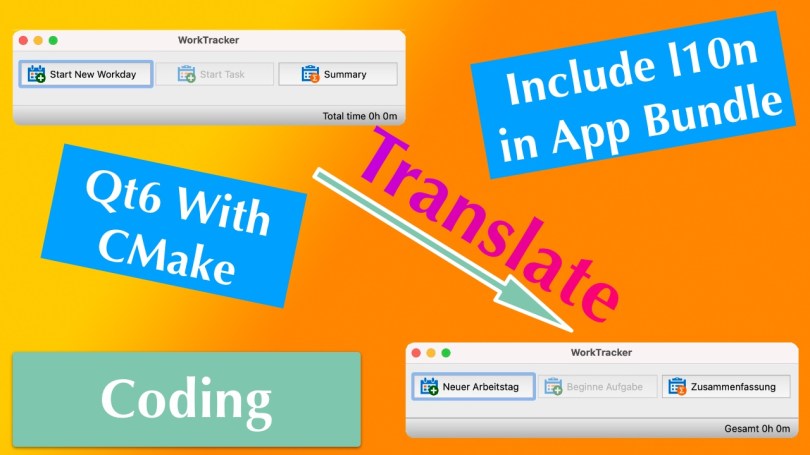
Package Qt6 macOS App Bundle With Translation Files In CMake

Recently, I wrote about how you can create a macOS app bundle with CMake for a Qt6 application. I omitted the inclusion of translation files, which also required code changes. Well, I figured it out and will briefly explain what I had to do.

In my WorkTracker application, I store the language files in a folder called “l10n” at the project’s root. The first thing to do is instruct CMake to copy the *.qm files to the app bundle’s “Resource” folder. I have done that before for the app icon, and the process is similar for this kind of file.

set(l10n_files
    "${CMAKE_SOURCE_DIR}/l10n/qt_de_DE.qm"
    "${CMAKE_SOURCE_DIR}/l10n/de_DE.qm"
    "${CMAKE_SOURCE_DIR}/l10n/en_US.qm"
)

set_source_files_properties(${l10n_files} PROPERTIES 
    MACOSX_PACKAGE_LOCATION "Resources/l10n")

qt_add_executable(WorkTracker MACOSX_BUNDLE 
    ${worktracker_src} 
    ${app_icon_macos} 
    ${l10n_files})
  1. Define a variable l10n_files that contains all the files.
  2. Tell CMake that these files shall end up in the app bundle, in the “Resources/l10n” folder, to be precise.
  3. Include the files in the call to the qt_add_executable function.
A macOS Finder window showing the contents of the "Resources/l10n" folder in an app bundle.

Now that the translations are part of the bundle, a minor modification to the code tells the application where to find them. The Qt documentation contains a section about using macOS APIs to determine the bundle location. That is not necessary, though. Qt also has a helpful method to achieve the same goal, QApplication::applicationDirPath().

#if defined(Q_OS_LINUX)
    // On Linux the translations can be found in /usr/share/worktracker/l10n.
    auto l10nPath = "/../share/worktracker/l10n/";
#elif defined (Q_OS_WIN)
    // On Windows the translations are in the l10n folder in the exe dir.
    auto l10nPath = "/l10n/";
#elif defined (Q_OS_MAC)
    // On OS X the data is somewhere in the bundle.
    auto l10nPath = "/../Resources/l10n/";
#endif

auto appDir = QApplication::applicationDirPath() + l10nPath;

This method returns the absolute path to the “MacOS” folder inside of the bundle, the folder where the application’s binary is located. Appending /../Resources/l10n/ first navigates up to the “Content” folder (via /..), which is more or less the bundle’s “root” directory, and from there, goes to “Resources/l10n”. Finally, the language files are loaded like on Windows, and the translation works as expected.

I hope this was helpful because I could not find much information on this specific topic.

Thank you for reading.

Package Qt6 App as macOS App Bundle With CMake

The Qt documentation contains all the necessary pieces to create a macOS app bundle. Some steps require CMake configuration, while others require manual labor, i.e., terminal commands. Ideally, you, the developer, want to automate the whole thing and not enter the commands every time you build a release.

You can do that with CMake, and this How-To will show you what to do. I am taking my WorkTracker application as an example since it isn’t just a little toy with an executable binary. It is a fully functional application I use daily at work (albeit on Windows) with icon resources, language files, and several Qt libraries and plugins.

Note: I will not elaborate on the language file topic, as it requires code changes to find the translations in the bundle file. This post focuses on automating the app-bundle creation and setting an application icon.

Read More »

Consume Messages With Spring Cloud Stream Kafka

Update:

Spring Cloud Stream is a very complex topic and a remarkable piece of technology. It builds on other intricate Spring technologies like Spring Integration and Spring Cloud Function, and when you add Apache Kafka to the mix, you have a steep learning curve on your hands.

There is a lot of documentation to read and comprehend, and I do not think it helps that your first interaction with the technology is by showing off. Here is the sample in the “Introducing Spring Cloud Stream” section.

@SpringBootApplication
public class SampleApplication {
    public static void main(String[] args) {
        SpringApplication.run(SampleApplication.class, args);
    }
    @Bean
    public Function<String, String> uppercase() {
        return value -> value.toUpperCase();
    }
}

That supposedly is a fully functioning application. The uppercase() method consumes and produces simultaneously, essentially turning it into a way software can pleasure itself. To understand this example, you must know about all the Spring Boot auto-configuration magic happening in the background. Otherwise, it is an opaque magical, and indecipherable showpiece.

This post will show a practical example of a simple consumer application receiving messages from a Kafka cluster. This was my use case, and while the documentation contains a ton of helpful information, it only succeeded in confusing me at first, coming to the technology with fresh eyes. As a result, it took me a long time to put together all the pieces before I understood what was going on.

Read More »

AD Workload Identity for AKS Pod-Assigned Managed Identity (Cross-Post)

Managing credentials and other types of access tokens is a hassle. In Microsoft’s Azure Cloud, you can take advantage of Service Principals and RBAC. But even then, a Service Principal requires a password. There is a better solution in Azure called Managed Identity. But how can you employ this feature when your workload runs in AKS? There is a solution, and I’ve explained all you need to know in an article on my employer’s developer blog.

There was this thing called Pod-Managed Identities, but that was pretty elaborate in its setup. Azure Workload Identity is much leaner, making the configuration and usage more straightforward. Managing credentials and connection strings in Kubernetes microservices is a hassle I have disliked from the start. Assigning a Managed Identity to an AKS pod or even a Service Principal and then relying on Azure RBAC can make your life as a developer or IT ops engineer so much more enjoyable.

Visit the blog linked earlier to read the full version. It’ll contain my usual bad jokes and is not censored in any way. I’d post the same article 1:1 on this blog if I had not researched the topic on company time.

I hope it can help you, and thank you for reading.

Spring Boot Push Micrometer Metrics to Prometheus Pushgateway

Prometheus, as a metrics solution, gets its data by actively reading it from designated services – a process known as scraping. This approach might not work if your workload contains short-lived tasks, as your task may not fall within the scraping time window.

Luckily, Prometheus has a solution for this: the Pushgateway.

It presents a push-based target for your metrics that itself is scraped by Prometheus. But how do you configure this in a Spring Boot application? Let me show you.

Read More »

Spring Boot Custom Field Error Messages in Class-Based Custom Bean ConstraintValidator

This short guide will focus on a single specific aspect of custom bean validation. If you need to catch up on how to write a custom bean validator, check out the tutorial on reflectoring.io. What is usually missing from these how-tos is the handling of validators for an entire class instead of just a field and how to set custom errors for specific field errors in a class.

Why would you want to write a validator for an entire class?

You may run into a situation where the value of one field of a class depends on the value of another field. For example, the field “type” value impacts which values are valid for the field “content”.

But when you define a custom validator, the validation annotation @interface only represents a single error message. The result is that any field error would result in the same error message. In a web service, this is not very helpful for users of your API.

Read More »