Nioh 3 is highly anticipated by many gamers, and it looks like Koei Tecmo and Team Ninja are confident in the game’s quality, as they have released a demo on Steam and PlayStation. Kudos for doing that. I’m primarily interested for technical reasons. Team Ninja games usually have a, let’s call it, interesting performance-to-visuals ratio.
To save you time, let me say right up front that you can easily achieve 100 FPS or more with hardware similar to mine if you stick to the default presets. Let me repeat that because it’s an important detail: if you stick to the default presets. As you can see in the background, the FPS counter is essentially stuck at the 120 mark.
The visuals are attractive and serve their purpose, although nothing to write home about. More important in a fast-paced, combat-oriented Team Ninja game is how it feels to play. If you enjoy games like this, I think you won’t be disappointed.
But Nioh 3 is not without its idiosyncrasies. And I’m not talking about how quickly the story turns batshit crazy like a Jim Carrey performance.
If you’re interested, stay tuned.
I also have a German version of the video.
Hardware & Software
This is the first time that I put CachyOS on the spot to show what it is capable of in a Linux Gameplay Performance analysis. The Kernel version is “6.18.7-2-cachyos”, Mesa is on version “25.3.4-2”, and for the full Cachy experience, I’m also using “proton-cachyos-10.0-20260102-slr-x86_64_v4”.
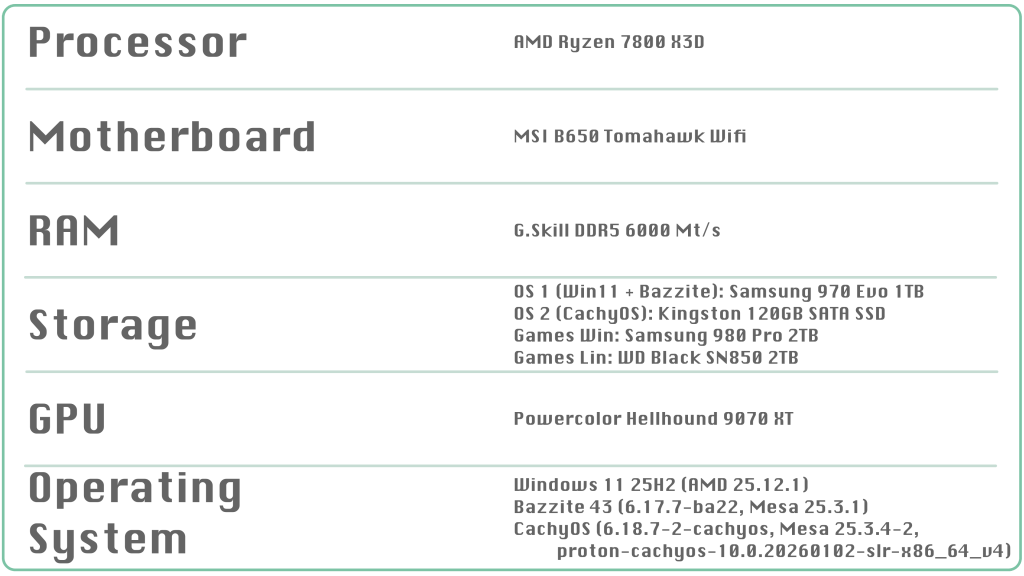
The resolution is 1440p.
Game Launch & Menu
As always, we start with the game’s launch and main menu. I didn’t have to make any changes, and Nioh 3 booted as if Linux were its native habitat.
Personally, I do not like the menu at all. It’s way too convoluted, with many nested submenus, multiple pages per section, and cross-menu side effects. This makes navigation a chore and very confusing. But with so many options, you can also modify a lot about the game. A not insignificant amount is dedicated to camera and player movement. To me, the defaults looked well chosen. I didn’t have anything to complain about in my roughly two hours with the game.
But to be honest, I’m having a hard time judging whether any of these settings are useful. I was simply overwhelmed by the amount there is. What I found most useful was the option to change the subtitle size.
For people who hope to remap the controller buttons, I have bad news. You can’t. On the positive side, Team Ninja added a few presets to choose from. What was most important to me was that the default preset mapped “B” on an Xbox controller to dodge, “X” to jump, and pressing the left stick to sprint. That’s how I expect the basic movement to be in any game.
The graphics options are where things get a bit quirky. As expected, Team Ninja’s tech is somewhat finicky, which I’ll get into once we jump into the gameplay. The presets are Very Low, Low, Standard, High, and Very High. You can also find upscaling and frame generation.
That’s it for the theory. It’s time to finally spill some Yokai blood.
Sounds horrible, doesn’t it? Huh, who cares? Still the bloodthirst. Now!
Gameplay Performance
Let’s start with the presets as defined by the game.
As I mentioned earlier, you can enjoy 120 FPS almost without exception. This applies to all presets from Standard to Very High, at least up until the first real Boss. That’s as far as I managed to get, as you’ll see later 😉. It’s quite possible, very likely even, that later levels are much more complex than what the early demo areas offer.
The performance I saw surprised me a lot, and I was disappointed that Nioh 3 always enforces an FPS-lock. You can select between 30, 60, and 120 FPS, but there’s no unlocked FPS option. Sadly, this prevents you from experiencing the true potential. Is what I thought. As I later found out, the game enables upscaling across all graphics presets. In my case, it was FSR 3.1. I assume it’s FSR 4 on Windows via the driver.
However, this circumstance is not immediately obvious. The upscaling option isn’t shown on the same screen as the resolution or the preset selection, unlike in almost every other game. You must navigate to the advanced resolution menu to find out about that. That’s where you’ll also find the option to generate frames. For whatever reason, the upscaling quality is tied to the dynamic resolution scaling target instead of being a simple quality-level selection. I would assume there is a way to manually select the scaling quality somehow. It’s just not intuitive. And hidden. Even I couldn’t find it immediately, and I’m searching for this stuff.
As I said, Nioh 3 has idiosyncrasies.
Nioh 3 enables quality-level upscaling for all presets except Very Low. In the lowest quality preset, you must tolerate a 40% resolution scale factor, which I assume is called Ultra Performance in FSR and DLSS. For comparison, Performance is 50% of the native resolution. I think this is a bit extreme, considering the max framerate of 120. Why?
But that’s not the only setting that confused me. The behavior of “FPS Dynamic Adjustment” also remains a mystery. I’m unsure how this is related to the DRS setting. If you disable FPS Dynamic Adjustment, the game complains about potential performance issues and suggests DSR and frame-gen as solutions. Frame-gen and performance in the same sentence are a funny combination. NVIDIA would certainly rejoice. Even more, if there were a mention of AI.
But I digress.
Btw: When I enable frame-gen, the game crashes and refuses to launch. The only solution is to delete the configuration file.
Looking at native performance, we’re quite far from 120 FPS. In this area around the big fire, we see an average of 84 FPS. Depending on the situation, the framerate can drop into the 70s, for example, when using finishers. It can also rise to 90 or 100 FPS when searching loot in buildings. Alpha-transparencies are the bane of high framerates and can even impact the performance when upscaling is enabled.
Switching to the High preset doesn’t change much in terms of performance or visuals. The average FPS after the dance with swords around the fire only drops by a single frame. Imagine the dad-joke-potential if the enemies were wolves.
You know: Dance with Swords, Dance with Wolv…
🥁
Let’s continue.
Since I’m nothing but chaotic, I didn’t test the highest preset in the same location. Instead, I trucked forward to face the first real boss. But even here, where the FPS often dropped into the 70s, you still see 81 frames per second on average.
As we’ll see in screenshots soon, it really requires pixel-peeping to notice differences between High and Very High. Another curious decision is the level of anisotropic filtering on the higher presets. 4x on the PC is anything but timely, especially on so-called high quality.
To remain consistent in my chaos, I also tested settings willy-nilly in the boss fight. On the High preset, I disabled Motion Blur and Film Grain while increasing model texture quality. Until my involuntary capitulation, the frame rate averaged out to 79 FPS.
On the Very High preset, which I didn’t modify, we can still see 78 FPS.
After manually cranking all the options to 11, the FPS counter shows an average of 71.
Global Illumination has the greatest impact on performance, even when upscaling is enabled.
To round things out, a brief comment on video RAM usage. As my testing showed, the Standard preset seems to be content with 8 GB of VRAM. High may also work, but it could be borderline the longer you play and progress in the game. On Very High, I definitely saw VRAM usage climb above 8 GB. As we’ll see on the screenshots in a second, that preset doesn’t seem to be worth it – at least in the sections I tested.
Screenshots & Image Quality
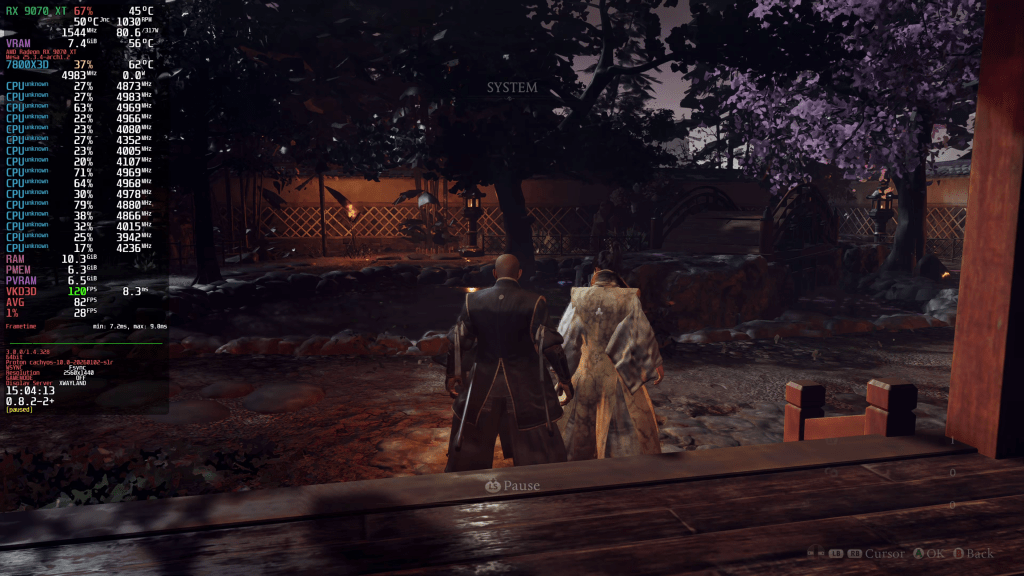
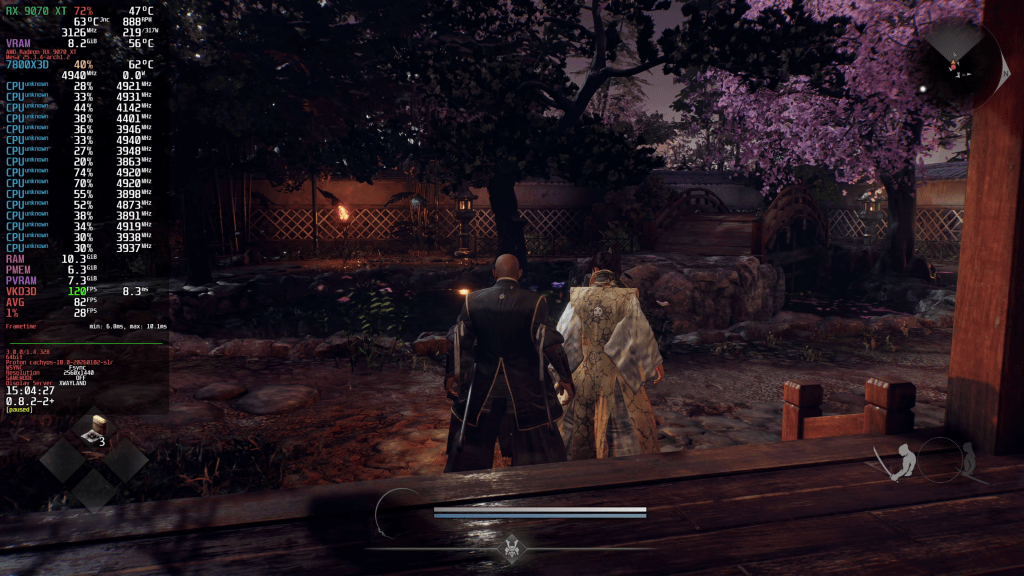
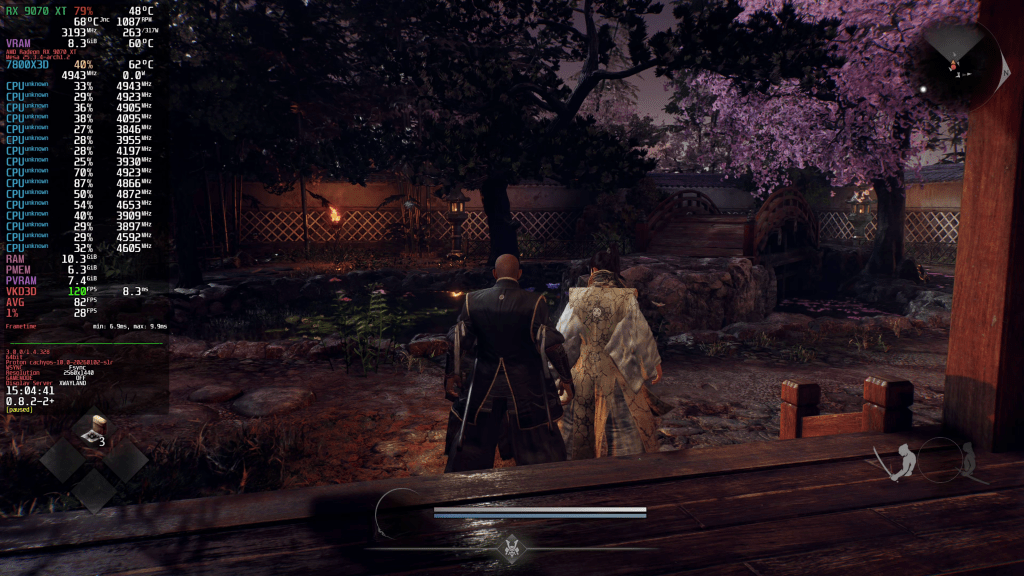
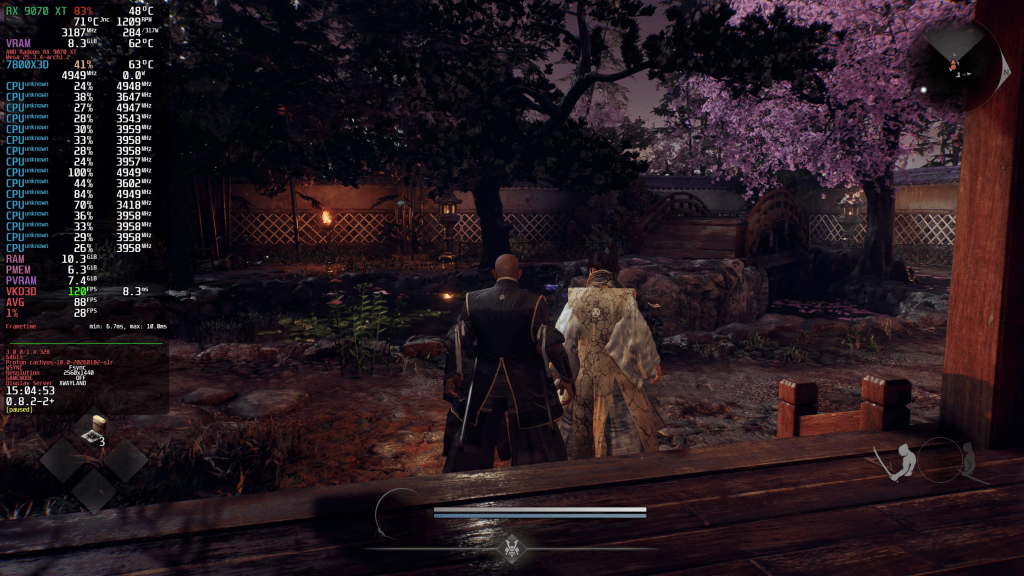
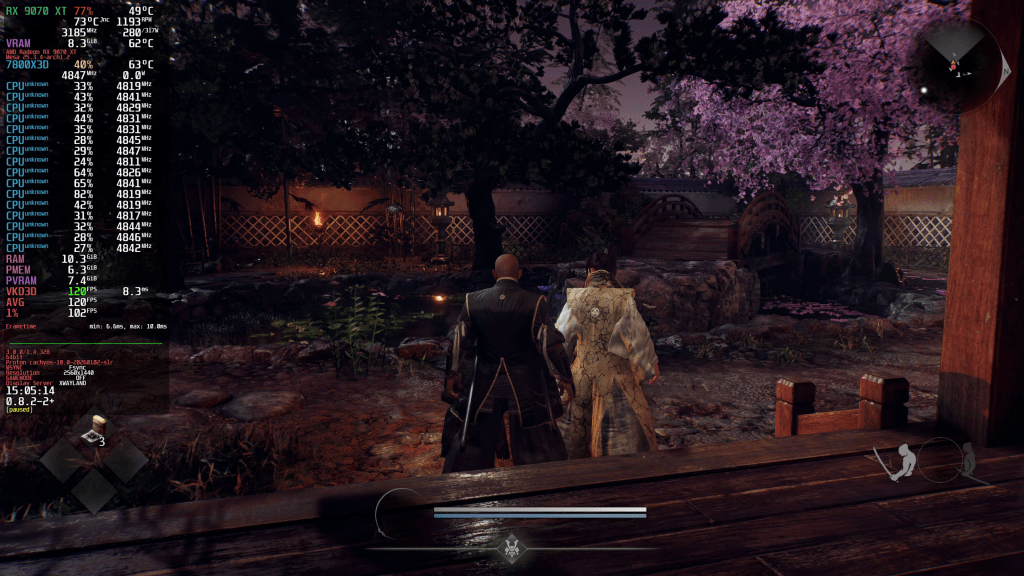
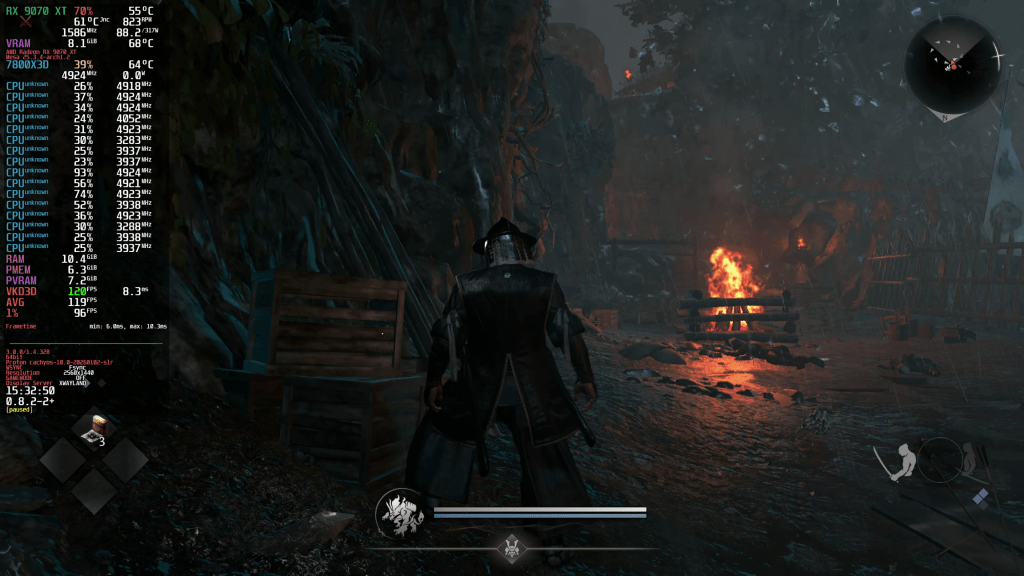
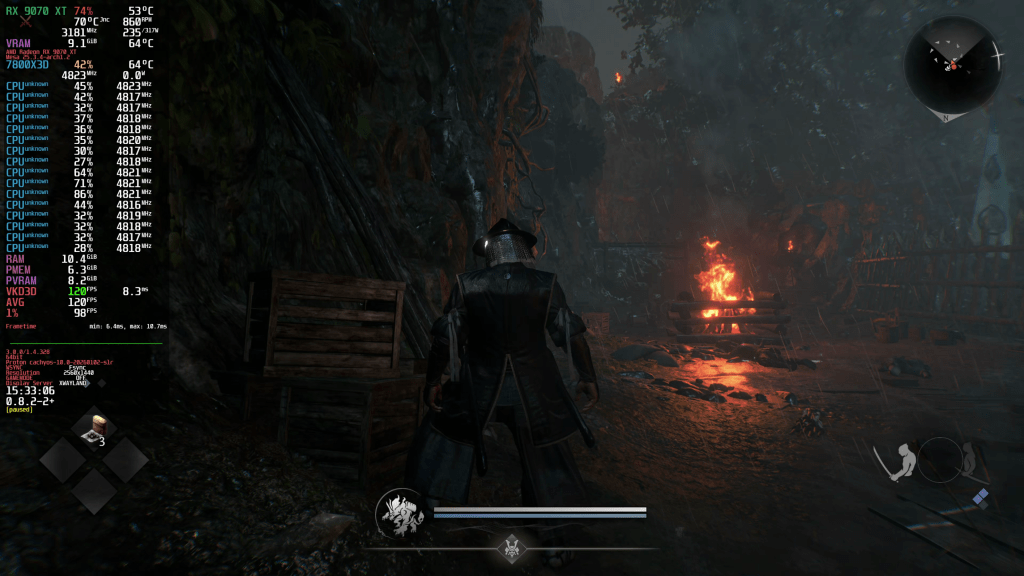
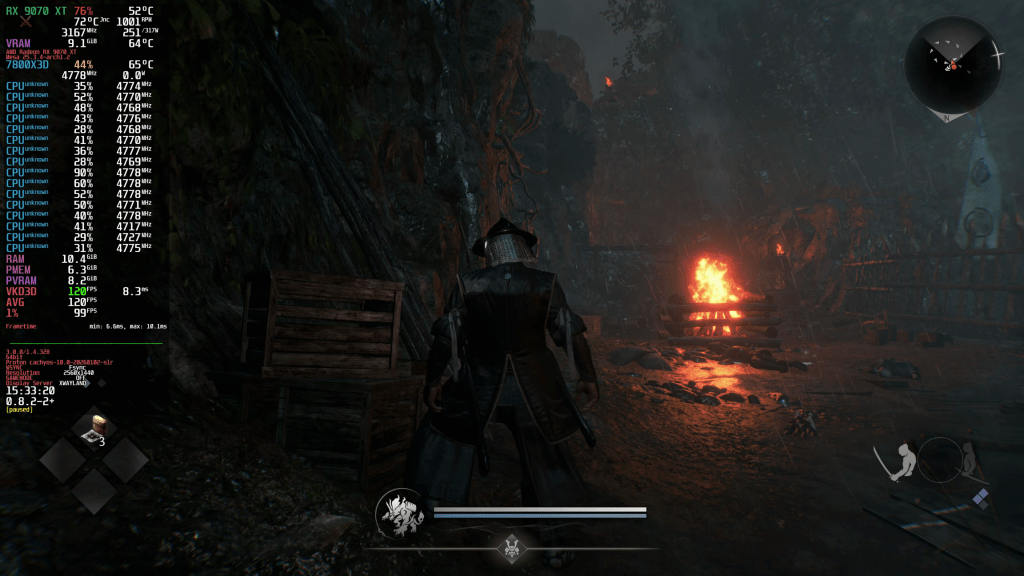
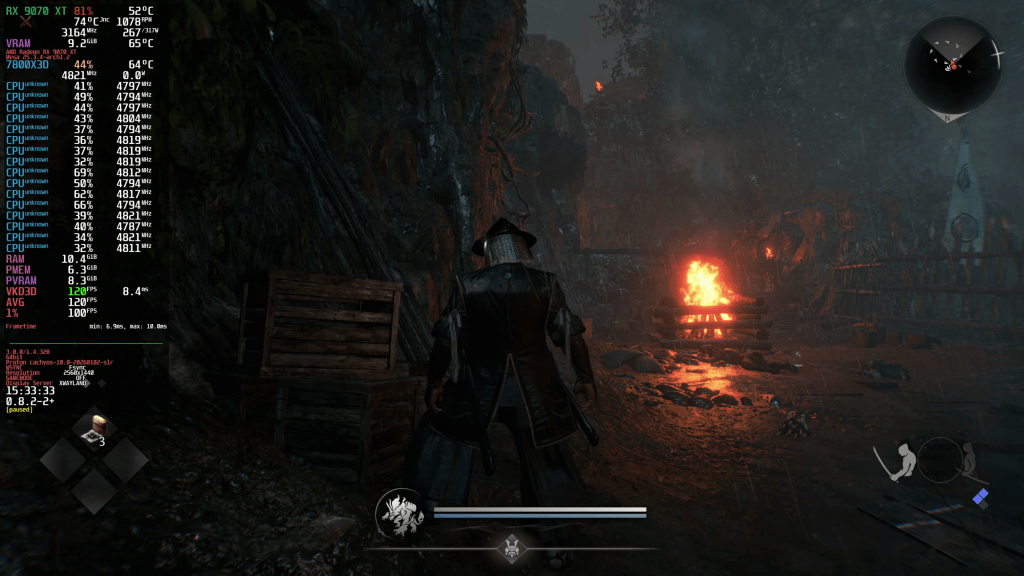
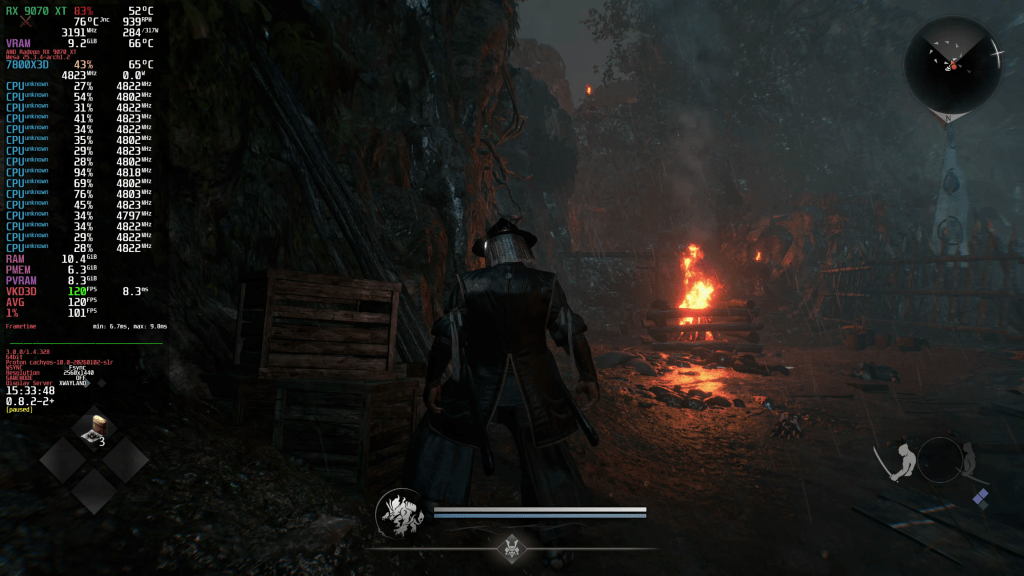
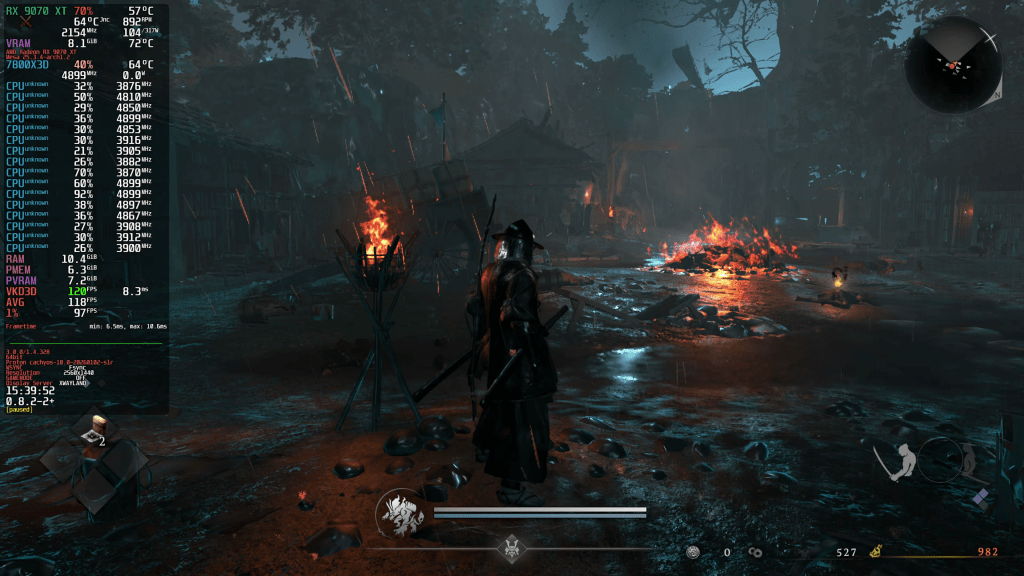
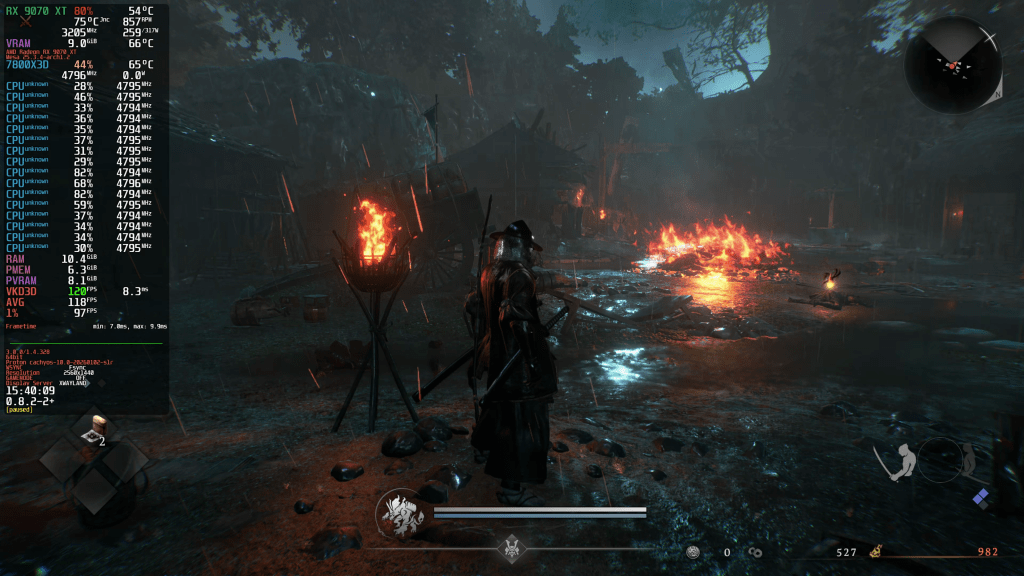
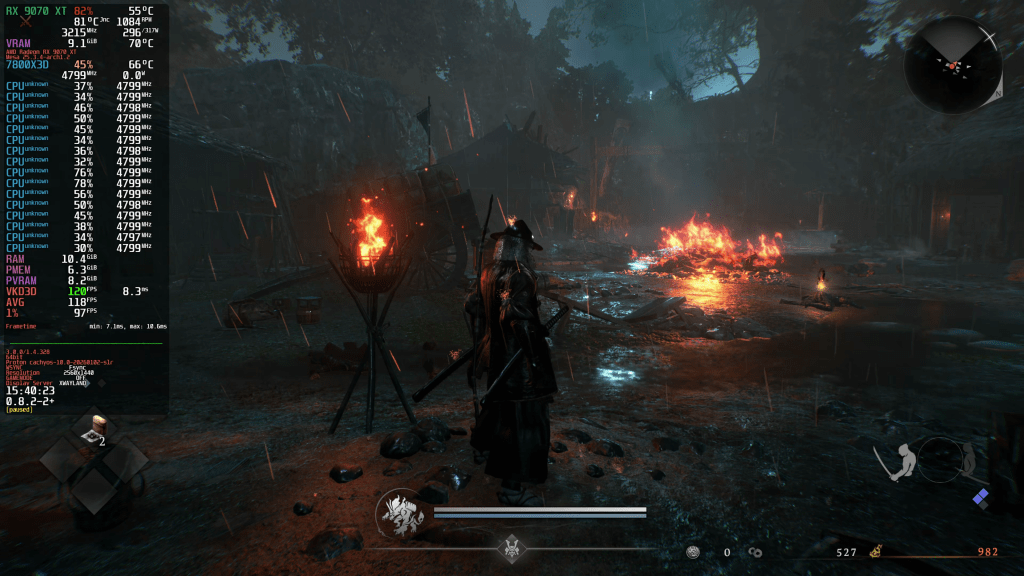
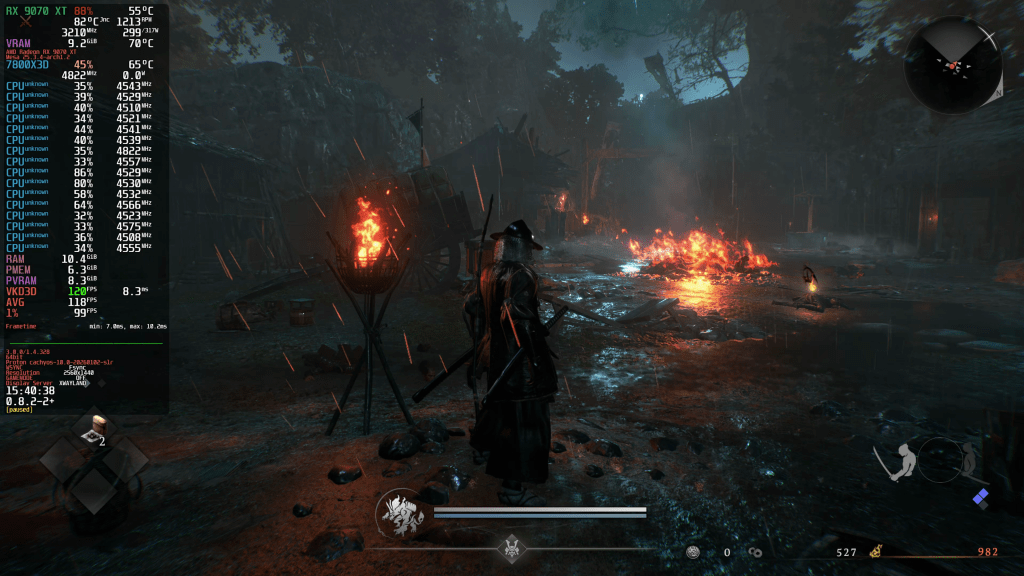
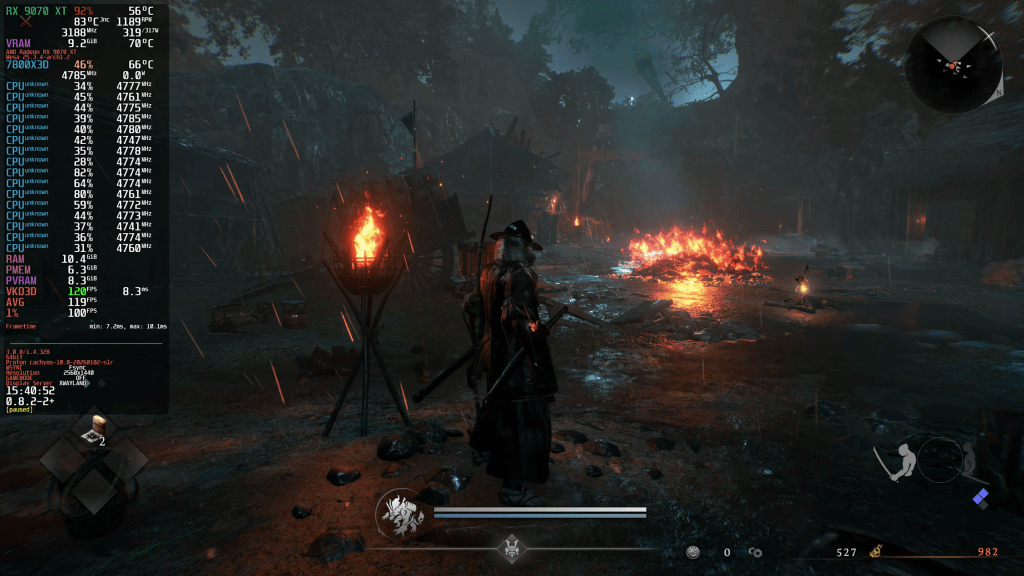
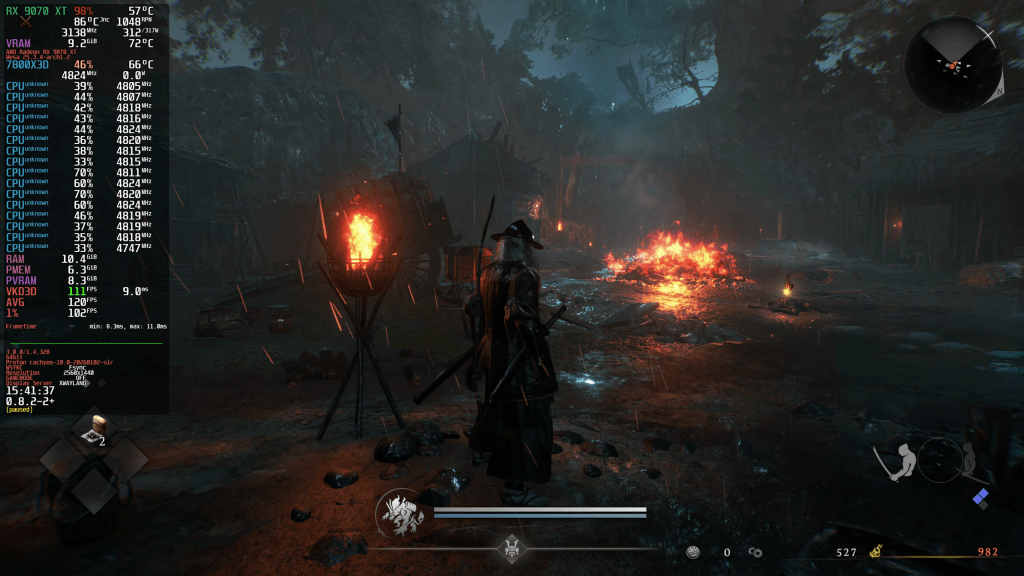
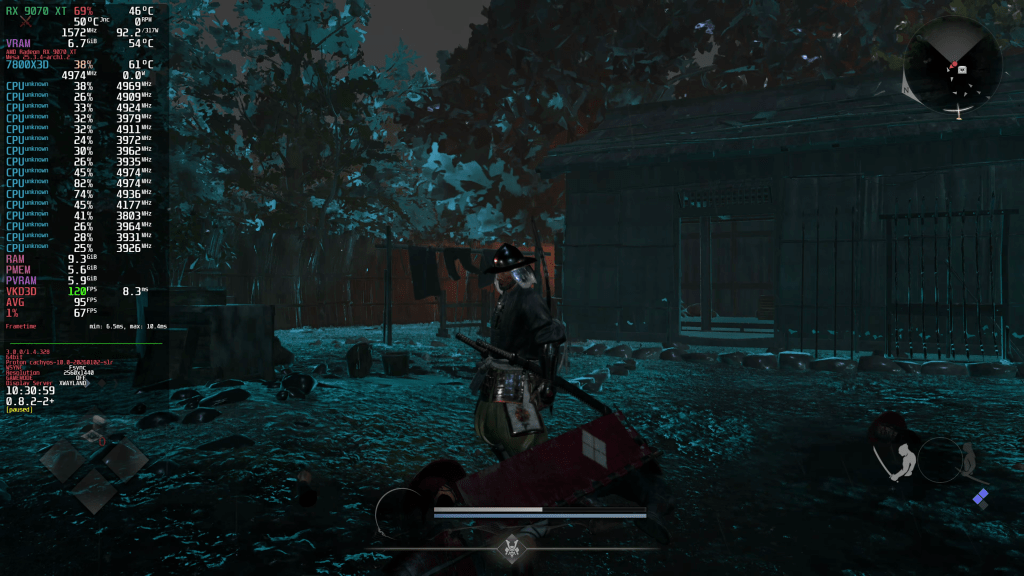
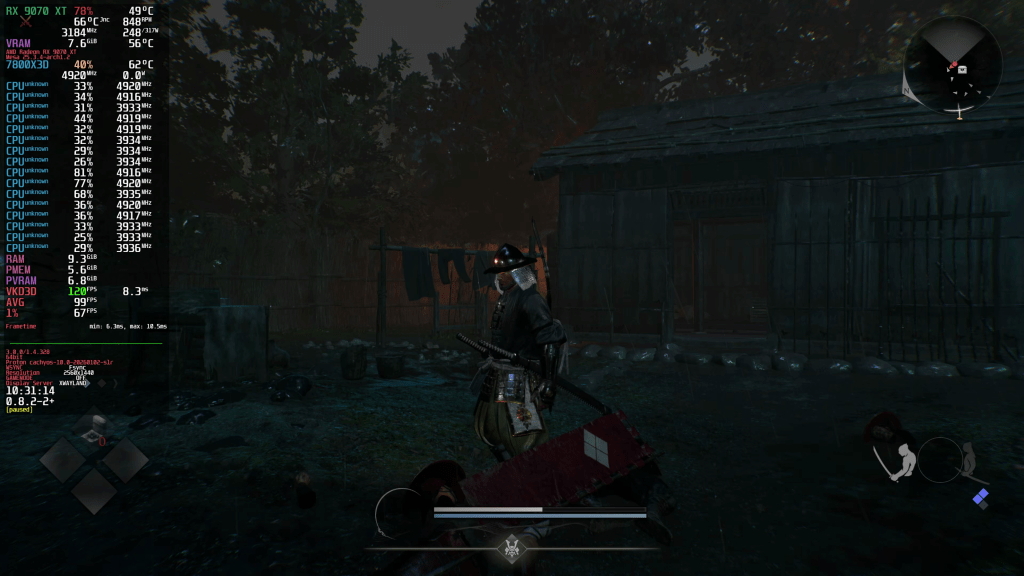
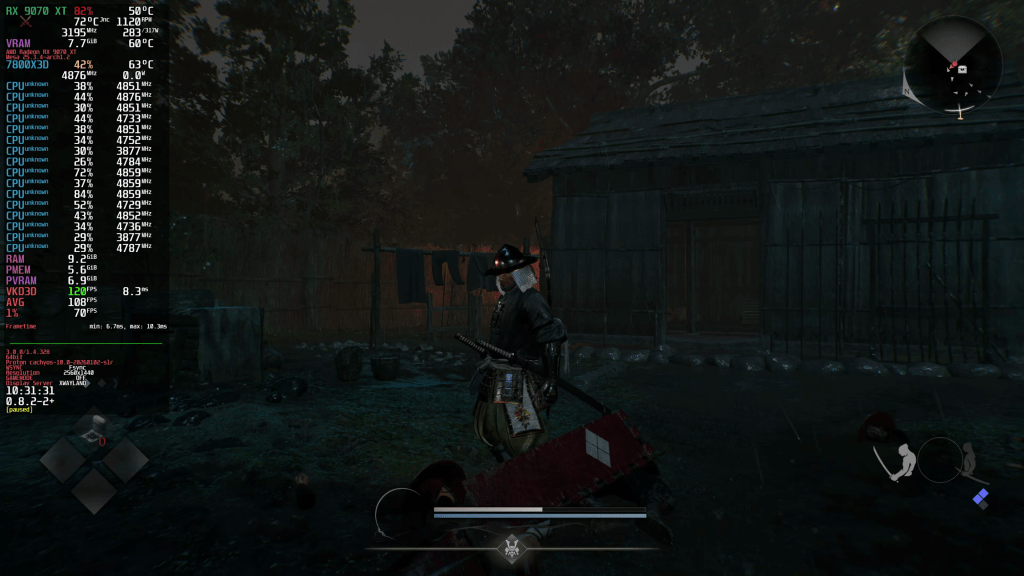
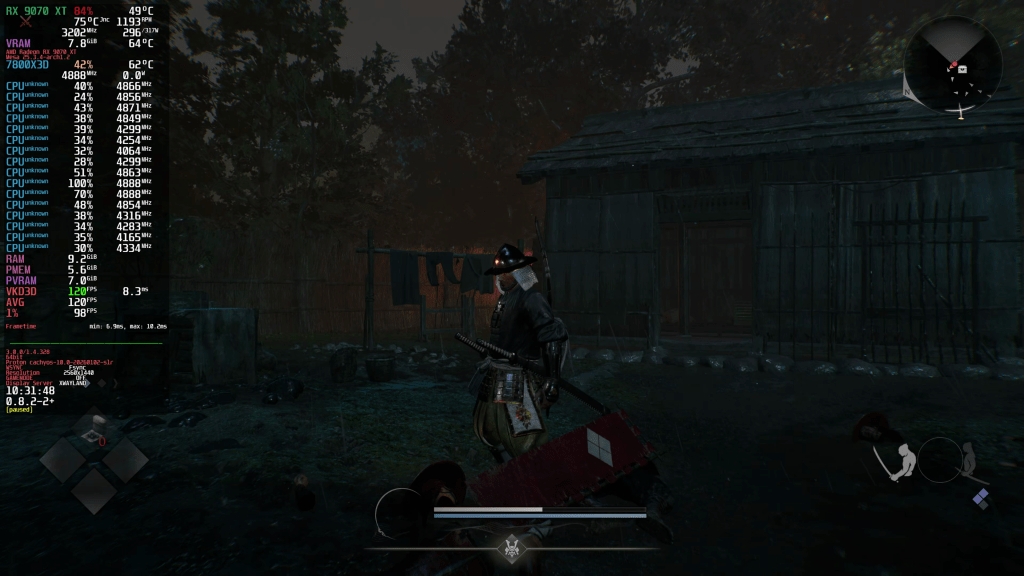
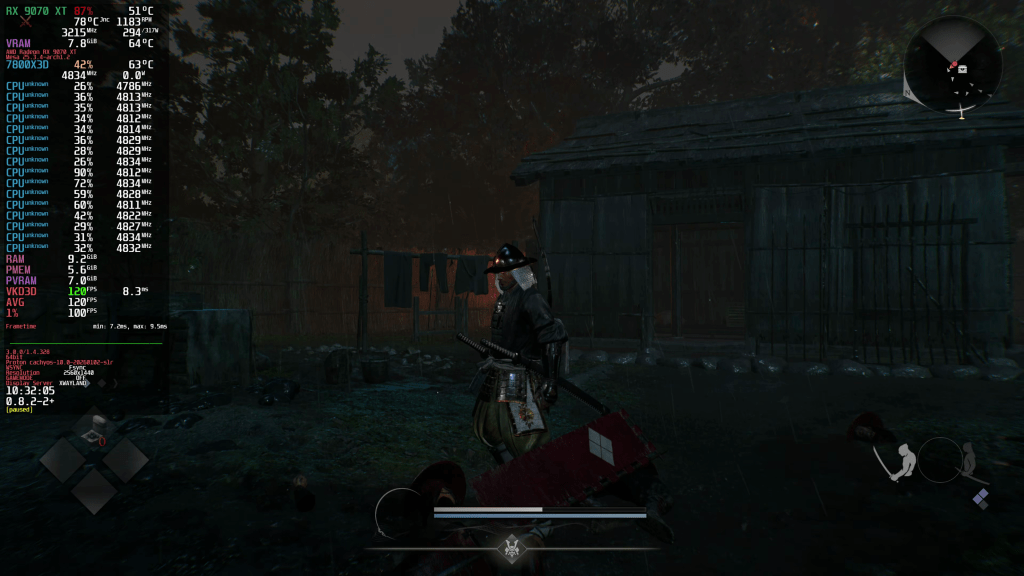
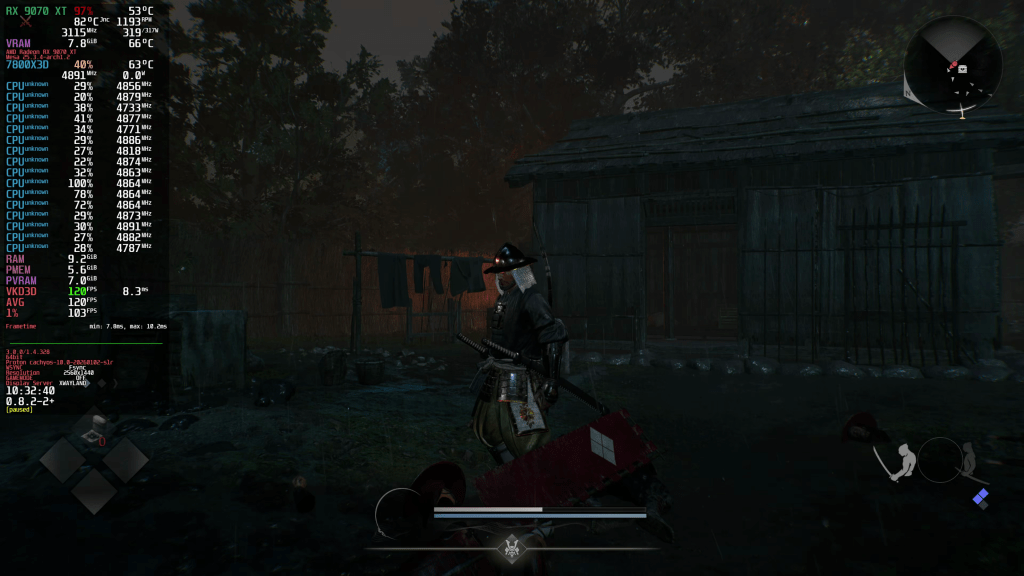
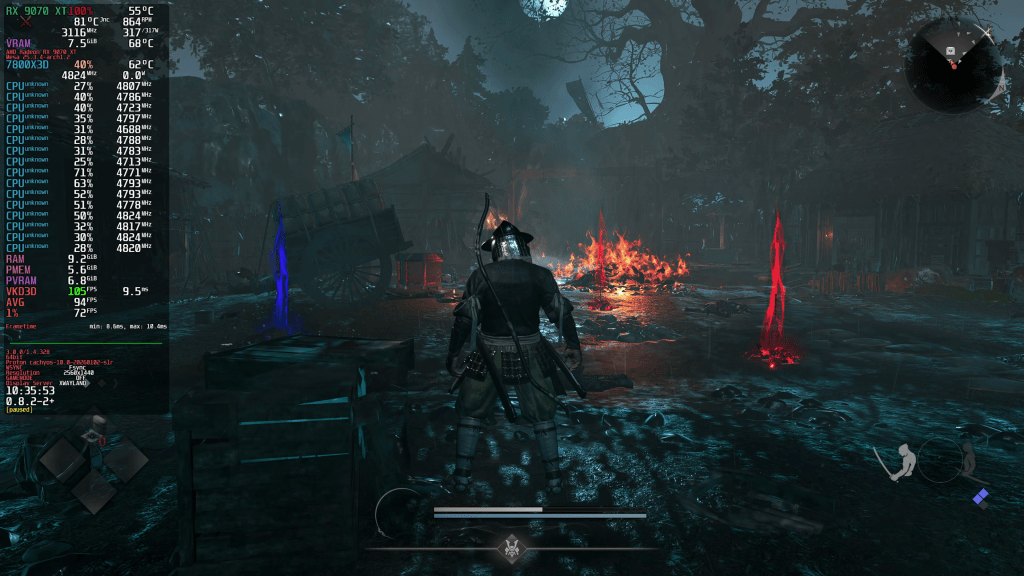
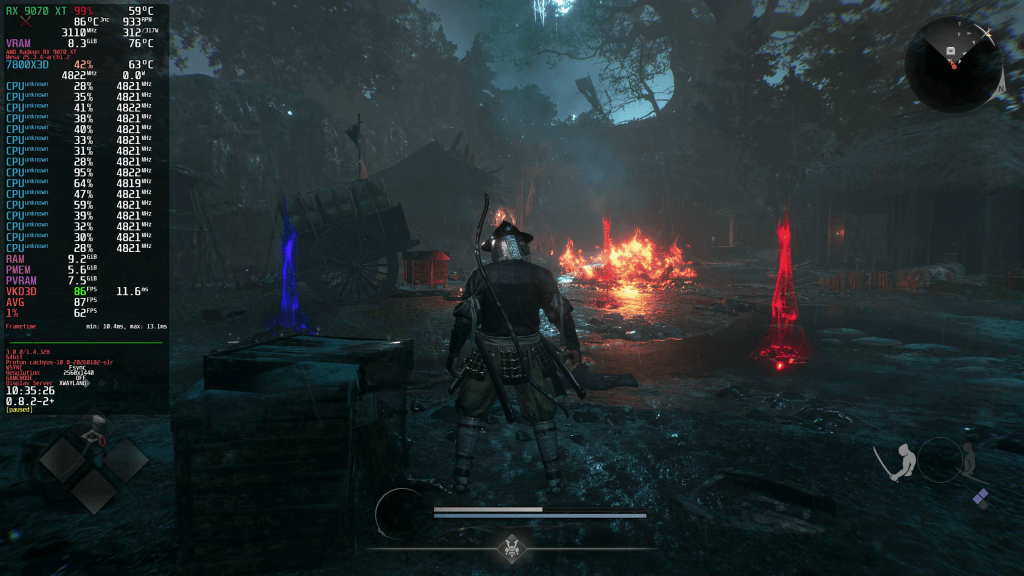
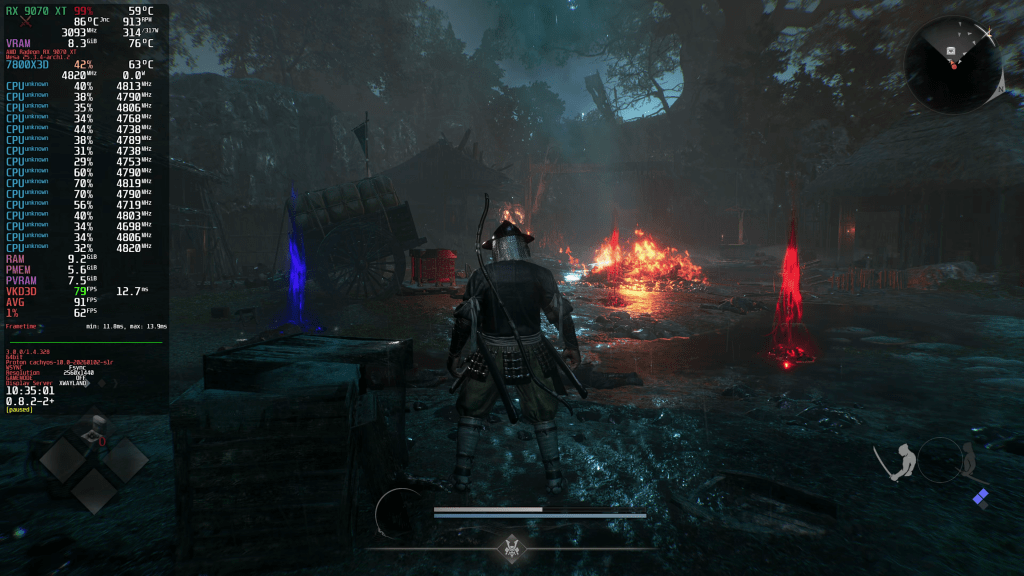
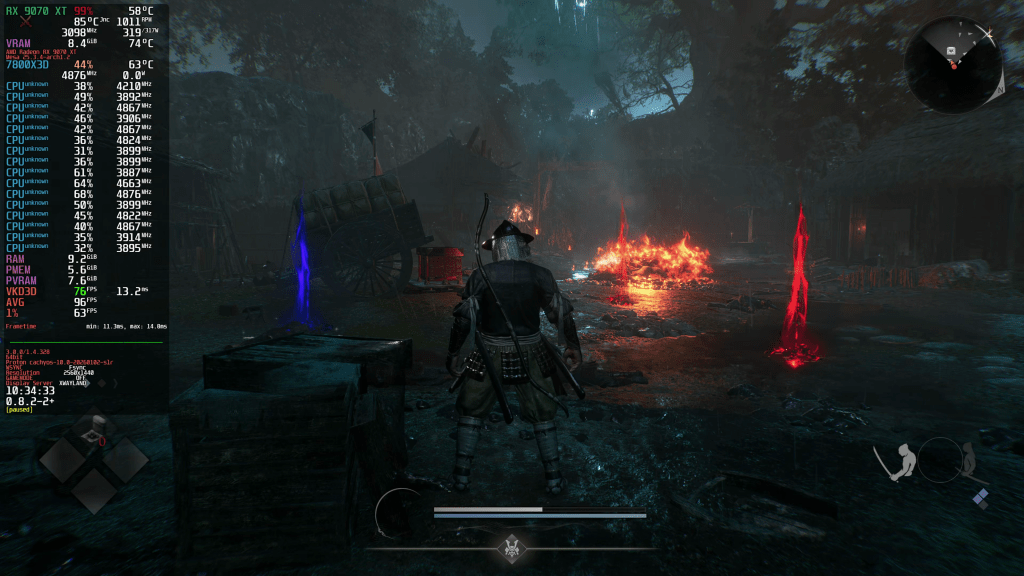
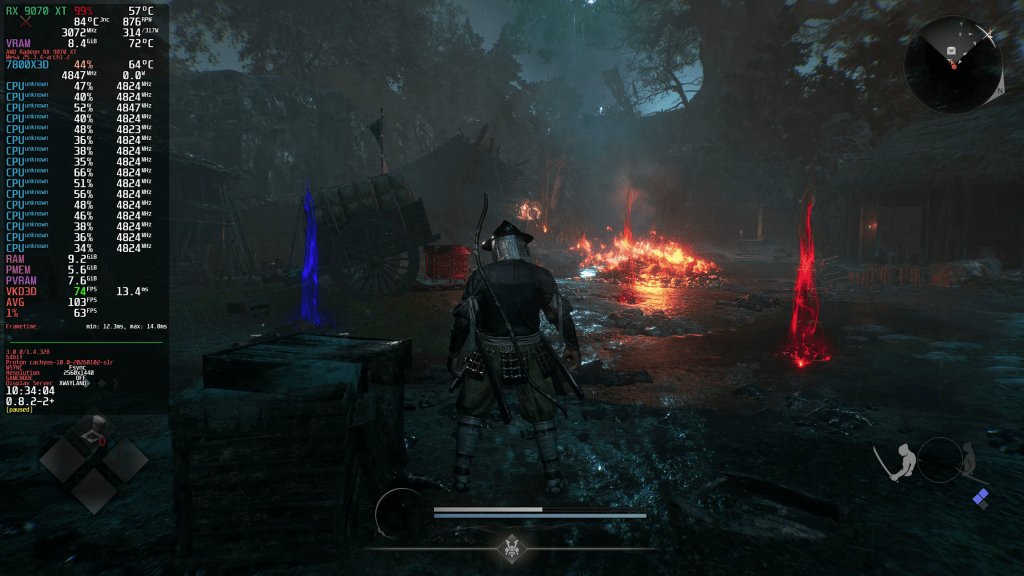
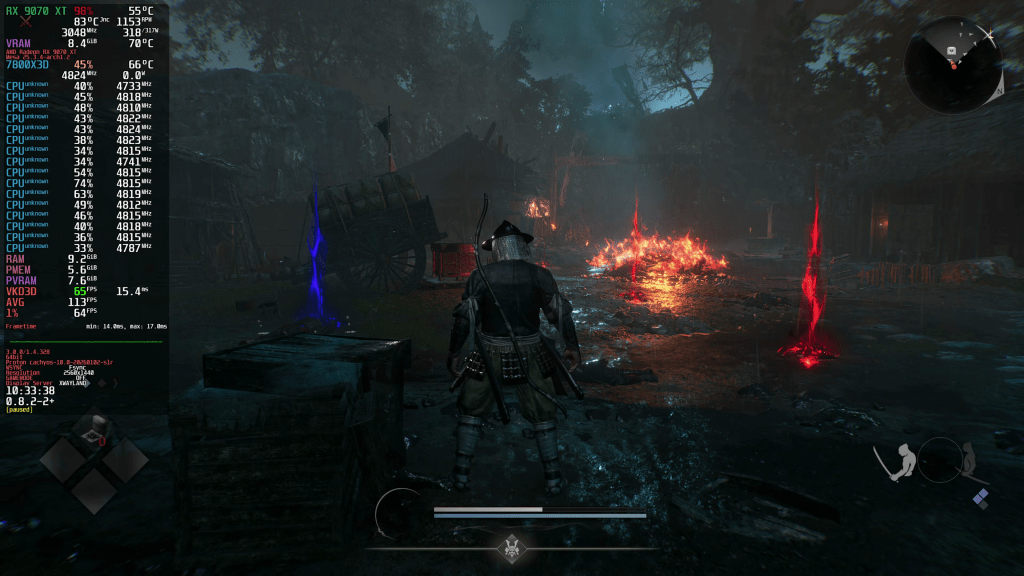
I won’t comment too much on the screenshots and let you form your own opinion. You’ll notice the biggest difference between the Very Low and Low preset. Everything that comes after requires very close inspection to spot the differences. Very Low is undeniably ugly and should be avoided if your hardware can handle it.
Since the FPS are always locked to 120 FPS, I didn’t see the need to compare it to Windows. As a result, I didn’t pay much attention to where I was looking to make it easy for me to replicate the location after a fresh start. Comparing Nioh 3 on Linux and Windows would have to be its own post. I need to check how easy it is to benchmark Nioh 3 with all the enemy respawns. This could complicate things.
Regarding image quality, I noticed two things. For one, the image can appear very grainy, most likely because of film grain – no pun intended – and further exaggerated by the upscaling. Personally, I’d disable that. It’s called Noise Filter in the game.
Secondly, I observed ghosting on the weapons on occasion. During the normal, hectic gameplay, you’ll likely not notice it much. But there are situations where it becomes perceptible. Machine-learning-based upscalers like FSR 4 or DLSS probably do a better job. Upscaling tech is always active, even at the native resolution. In that case, it performs the anti-aliasing.
A decision that irked me was the default 30 FPS limit for cutscenes. You can raise the limit to 60, but only under the game’s protest. Nioh 3 warns you about potential performance issues. Which is ironic, since I didn’t find the cutscenes particularly well frame-paced, making them rather chuggy. But please note that this is purely judged by eye. I cannot empirically prove that.
Famous Last Words
At first, I thought that Nioh 3 would be a simple analysis. It ran well, and the limitation to 120 FPS at peak made a comparison to Windows pointless.
And then I found out how to disable upscaling.
If you ask me, which you kinda do since you’re still here, I don’t think the performance properly matches the visuals on display. Nioh 3 isn’t particularly great looking, and the demo’s first areas aren’t too complex either. I’d expect even lower performance the further you get in the game.
To counter that, I must say that I didn’t notice the FSR 3 upscaling of the default presets. The image quality was surprisingly good, which was in contrast to what I experienced in many other titles. And you can expect a better quality from FSR 4 and DLSS. Therefore, I think sticking to the default presets is a valid option, with only minor modifications here and there. I’d disable the aforementioned film grain and increase the texture filtering quality to at least 8x. Depending on your taste, motion blur and bloom are two other settings you might want to tweak. To me, Nioh 3 had quite a blown-out look.
I know that my usual onslaught of silly metaphors took a step back today, and instead, I talked way more than usual.
I am… blaming Nioh 3 for that.
Thanks for spending your time with me today. Have a good morning, afternoon, or evening wherever you are on the globe.
 The Codeslinger