The hype around this game may have subsided, but I thought it would still be fascinating to test Black Myth: Wukong on Linux and Windows and see how both operating systems fare. Games Science’s handy benchmark utility was a perfect tool for the task. I was not interested in realistic gameplay benchmarks, so a built-in canned benchmark was perfect. What started as a simple run of the benchmark with different settings turned into a discovery of some unexpected behaviors that piqued my curiosity.
The Nerdy Bits
My testing rig, a Ryzen 7600 with 32 GB of DDR5 6000 MT/s memory, and an XFX RX 7900 XT Black Edition graphics card, was put through its paces with Black Myth: Wukong. The game is heavy and beautiful to look at.
My Linux distribution of choice was Fedora 40 Workstation running Gnome on Wayland. For reasons I will explain later, I tested kernel versions 6.8.5 and 6.10.11. The older kernel comes with the installation ISO; the newer one was the latest after an update. Windows 11 was version 23H2 with build number 22631.4169. AMD’s Adrenalin was version 24.8.1.
I ran all tests for Windows and Linux kernel 6.8.5 twice. The results were always within a single FPS or two, so I considered it good enough to save some time. As a result, I obtained the values for kernel 6.10.11 with a single run. I always discarded the very first benchmark run after starting the program.
Lastly, my resolution of choice was my monitor’s native 1440p. I tested with Unreal Engine 5’s TSR at 100% scaling to get as close to a native resolution as possible and AMD’s FSR at 75% scaling, which should equal the Quality mode. More on image quality later, though. Using an AMD GPU obviously prevented me from utilizing DLSS.
Let The Numbers Do The Talking
The game has several quality settings, of which I tested Cinematic, Very High, and High. I also tried Hardware Unboxed’s “HUB Quality” and “HUB Performance” settings. Their image quality analysis and optimized settings are in this YouTube Video. I ignored raytracing in my tests because it ran like… actually, it crawled more like. I had to use a 40% scaling factor to achieve a somewhat stable 30 FPS.
The numbers in the following table are directly from the benchmark tool. They show the average fps, minimum fps, and 5% low.
| Windows | Linux 6.8.5 | Linux 6.10.11 | |
| Cinematic | |||
| TSR 100% | 45/38/39 | 47/35/42 | 41/29/36 |
| FSR 75% | 59/47/50 | 63/44/55 | 54/45/47 |
| Very High | |||
| TSR 100% | 51/42/44 | 52/38/46 | 46/38/40 |
| FSR 75% | 68/54/57 | 72/51/62 | 62/50/53 |
| High | |||
| TSR 100% | 76/63/67 | 75/56/67 | 65/55/59 |
| FSR 75% | 102/79/89 | 106/70/84 | 89/73/79 |
| HUB Quality | |||
| TSR 100% | 79/66/70 | 66/48/60 | 57/48/52 |
| FSR 75% | 91/73/80 | 95/70/84 | 80/68/72 |
| HUB Performance | |||
| TSR 100% | 79/66/70 | 78/58/70 | 68/51/61 |
| FSR 75% | 111/85/97 | 115/85/103 | 97/74/86 |
As you can see, Linux and Windows trade blows, with Linux tending to be a tiny bit faster. But that is only true for the older 6.8 kernel. The latest version available on Fedora nerfs the GPU by only feeding it around 190 Watts instead of 290 Watts. The RX 7900 XT usually clocks around 2800 MHz in this benchmark. When running the 6.10 kernel, the clock speeds hovered in the 2200 MHz range. It was silent, though 😉. This random regression is one of the reasons I still cannot recommend Linux full-time for gaming.
These numbers are according to Mangohud. AMD’s driver on Windows reports a power draw of 350 Watts. I am unsure if both convey the exact same value, though, as performance numbers are similar.
Note that this issue is not limited to Black Myth: Wukong. Horizon Forbidden West shows the same clock speeds and power draw. Therefore, I assume it is a bug in AMD’s kernel driver.
However, the benchmark numbers are only a part of the story. Let’s discuss image quality. Higher FPS numbers mean nothing if the image quality differs across the systems.
(Spoiler, I suppose.)
In The Shadows
Update: AMD Adrenalin version 24.9.1 does not exhibit the graphical errors I describe in this section anymore.
Despite initially considering Windows the ground truth, further testing and pixel-peeping led me to conclude that there were issues with the AMD driver on Windows.
I captured the following screenshots from screen recordings to get the same shot more efficiently every time. As a result, the image quality is not as good as a typical screenshot. Additionally, the raytraced images look particularly bad because of the 40% render scale I had to apply to get something akin to a fluid presentation. All the images still get the general idea across.
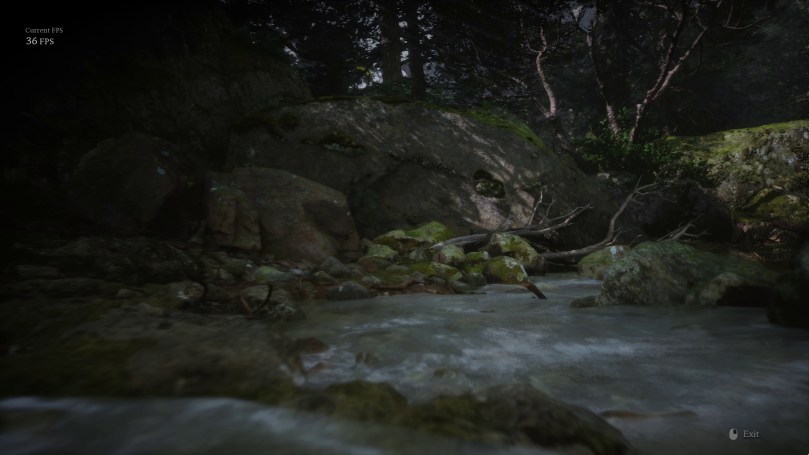
The discrepancy I found concerns the global illumination quality. I have three examples that show the differences. Let me start with Windows since most people with AMD cards will see that. The quality setting is Cinematic.
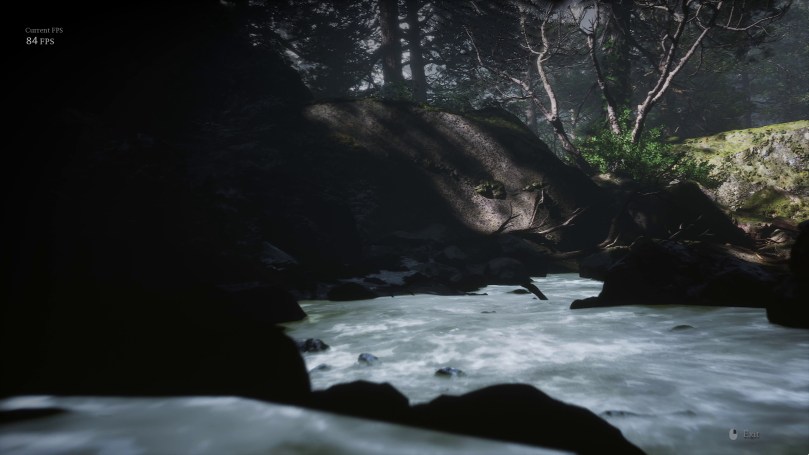
At first glance, this looks innocent enough. But look closely at the dark areas. They are very dark. Next is what the Linux driver and Proton produce.
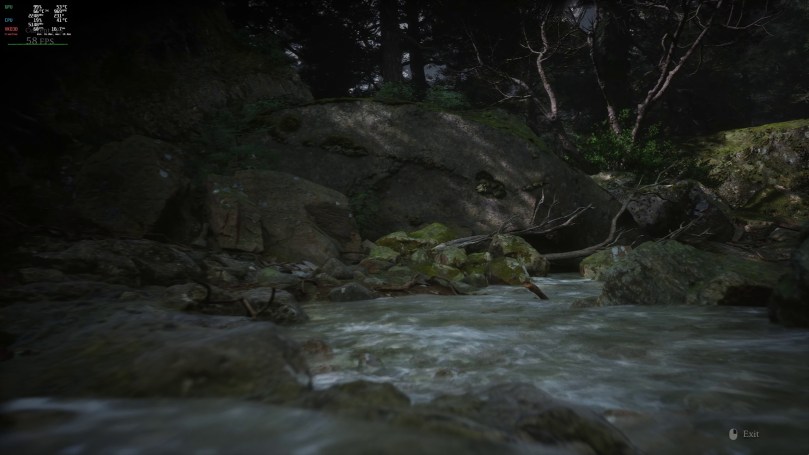
It should be evident that these are very different images. It was so different, in fact, that I considered it might be rendering at the Low quality preset, which could explain the higher performance. So, here is the same location at Low Global Illumination quality.
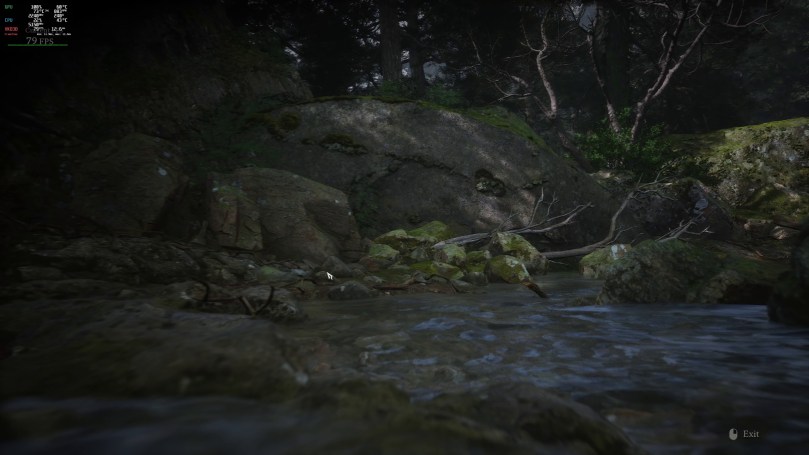
Eerily similar, don’t you think? Hoping that raytracing would produce the correct output, I tortured the poor GPU to get a benchmark run for comparison.
Apart from the FSR upscaling artifacts of the low internal resolution, all images except the Windows Cinematic are effectively the same.
The following example is the first to highlight a difference between the Cinematic and Low-quality settings. Look closely at the two enemies on the left. The highest setting can fill in more ambient shadowing.
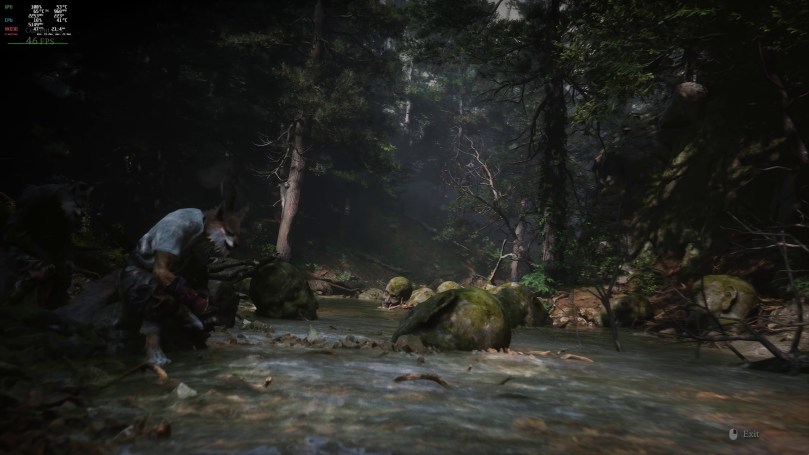
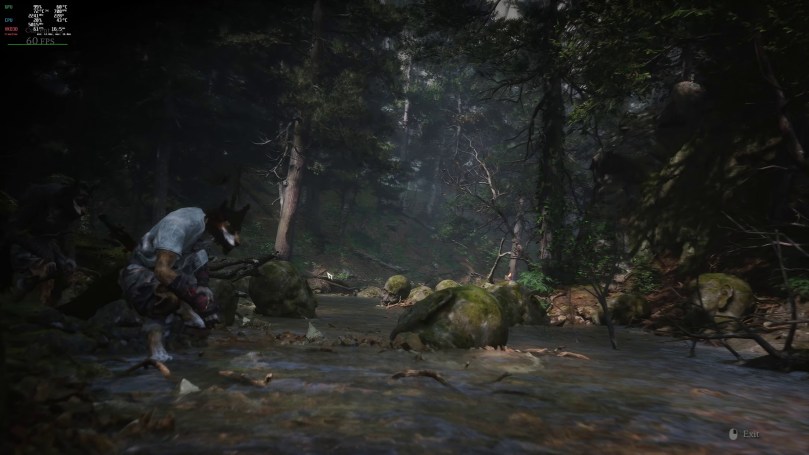
The Windows-based rendition crushes a lot of detail in black areas.
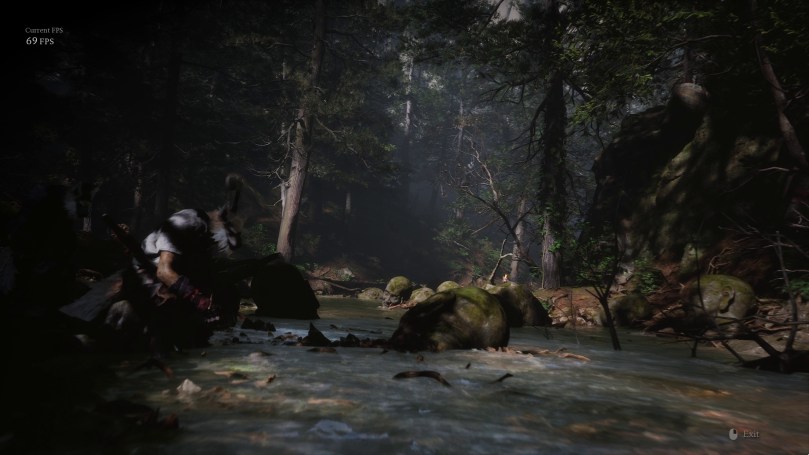
For comparison, the following image was produced by raytracing.
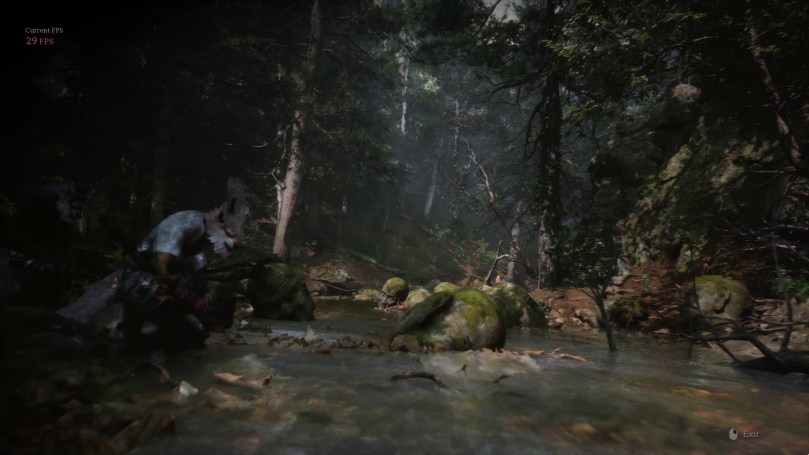
The final example not only shows how Linux, Windows, and the Low setting differentiate themselves. Raytracing especially shines by adding a lot more bounce lighting to the scene, giving it a greener hue.
Linux Cinematic:
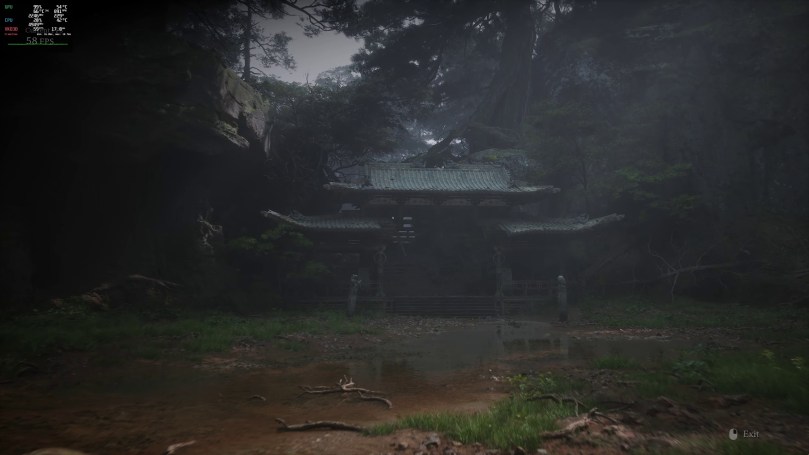
Linux Low:
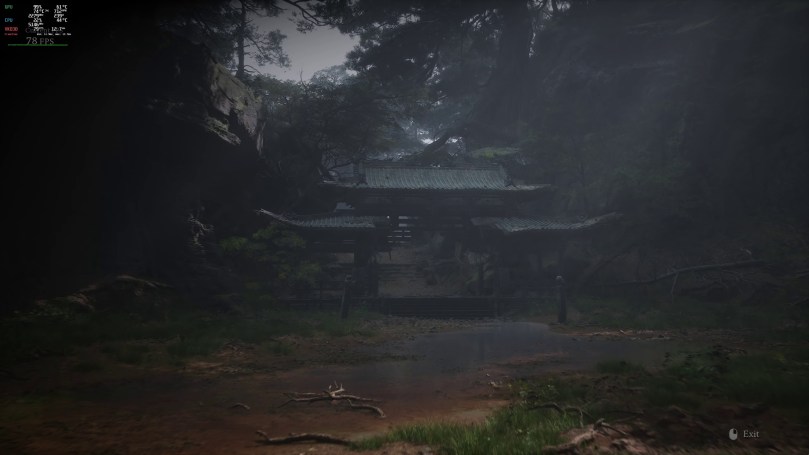
Windows Cinematic:
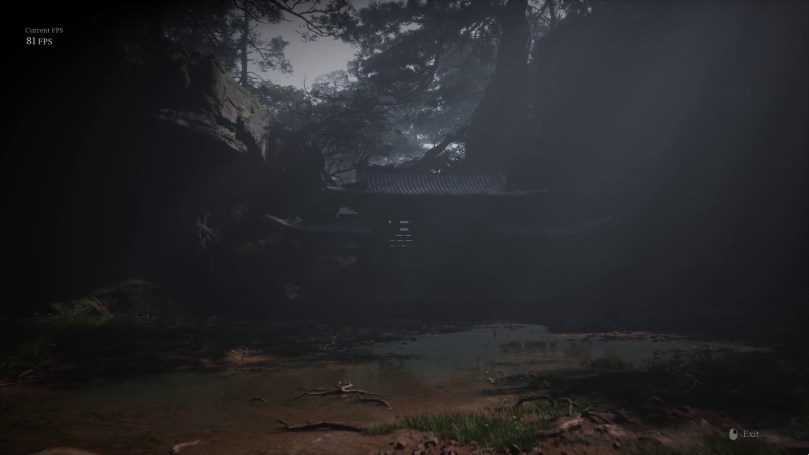
Windows RT On:
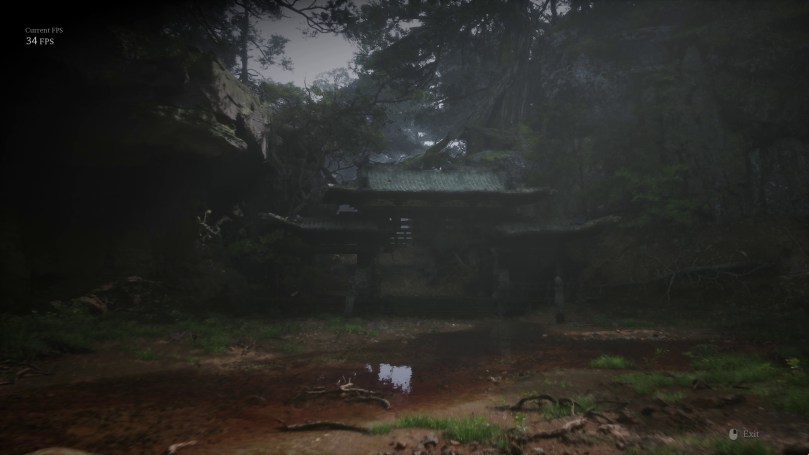
Of course, I also wanted to know how NVIDIA chips are doing on Windows. This nice gentleman ran the benchmark on YouTube using the Cinematic preset. I took video screenshots in the exact locations as my previous examples.
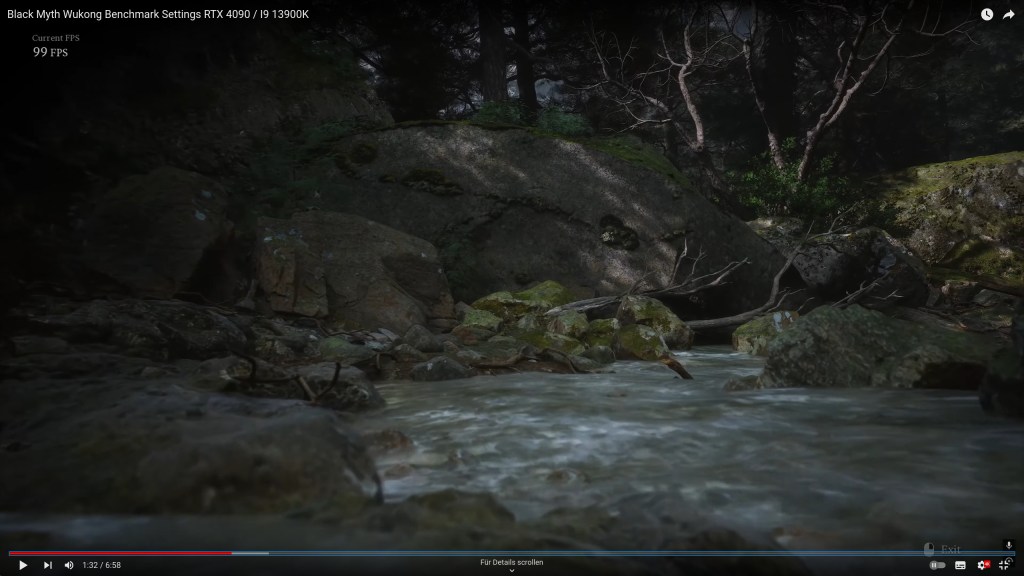
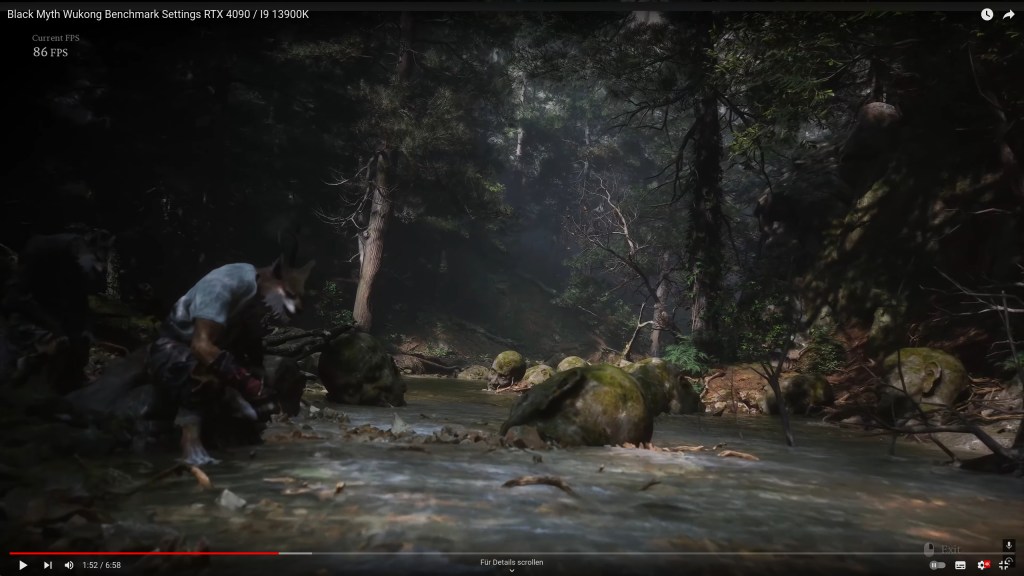
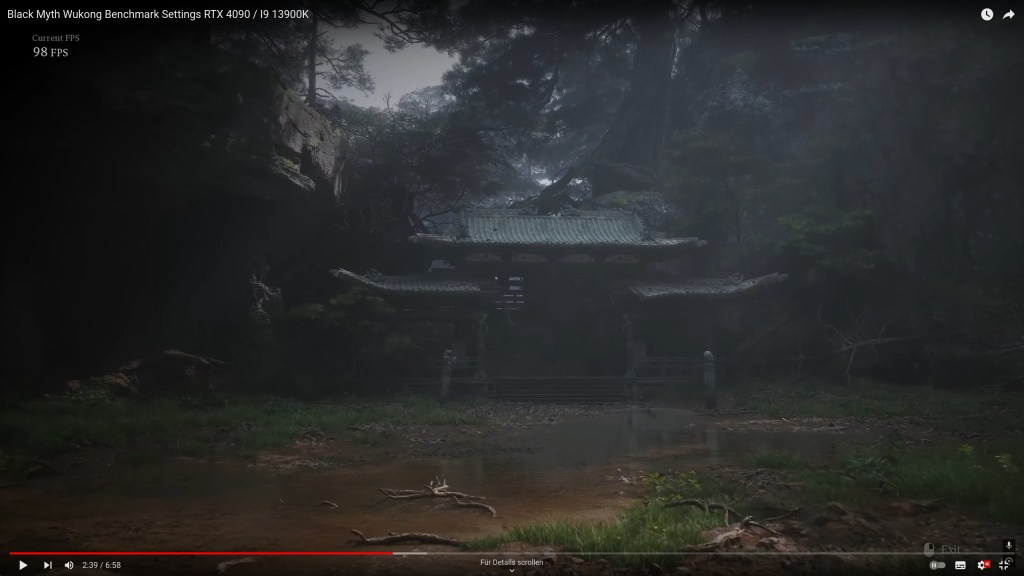
The results match the highest-quality preset on Linux. With this as a reference, it is safe to say that AMD’s Windows driver has an issue in Black Myth: Wukong.
Tip The (Up)Scales
Black Myth: Wukong, or BMW for short, which you should not confuse with the Bavarian car company, whose modern vehicles do not look as attractive as Black Myth: Wukong anymore, a totally out-of-place rant for a different time, comes equipped with all the upscaling technology one could want.
All have pros and cons, and AMD users have no perfect choice. TSR and XeSS show the least amount of ghosting, but the image stability, especially on foliage, could be better. Both also perform worse than FSR in terms of FPS output. However, I would prefer TSR at 100% over FSR at 100%. Emulating a native resolution this way gives TSR the edge. FSR still produces ghosting artifacts, while TSR’s shimmering is gone. When upscaling is the only option to produce more FPS, then FSR would be my choice, despite the ghosting. I expect it to be less noticeable during regular gameplay because my focus would be elsewhere. Shimmering, though, that is a different beast.
Please note that this is pure conjecture on my part. I do not own the game, so I cannot comment on how it would feel when playing. My only reference is the benchmark tool.
Famous Last Words
I was astounded at how things turned out. Given my previous Linux vs. Windows benchmark comparisons, I had expected close average FPS numbers and worse lows. That was not the case, though, which is a good thing. I could go back and try Starfield and Horizon again and see how they benchmark now. Horizon’s PC port at least feels much better to play today than it did at release.
Anyway, back to Black Myth: Wukong. My preferred setting would most likely be the Hardware Unboxed Quality preset with some upscaling. The game even provides a slider instead of predefined upscaling settings. This feature should allow for precise tuning of performance and image quality. A 7900 XT or equivalent could even run this at a “native” resolution by pushing the scaling slider all the way to the right.
Based on what I found, AMD users will likely have the best time on Linux. This is true for performance, although very close, and, most importantly, for image quality. If this applies to the whole game is beyond me, so please keep that in mind. I can only report on my experiences using the benchmark tool, which excludes hands-on time with controllers and whether there is proper 5.1 audio support.
My biggest complaint is the menu system. I strongly dislike how modern games make you click a button before you see the menu. It is a waste of time, and BMW takes its fair share of time to fade in the text and react to input. Additionally, keyboard navigation only works once you have selected an item. Triggering actions displayed on the bottom of the settings menu, such as applying visual settings, do not respond to mouse clicks. You must press the corresponding keyboard key.
Lastly, here is a note on the console version’s performance mode. Who in their right mind thought it would be a good idea to use frame generation to increase FPS from 30 to 60? What kind of monkey business is this?
(Sorry, I could not resist.)
Based on Digital Foundry’s analysis, I would want to avoid playing on a console at all costs. There is no suitable mode with a consistent framerate and frame pacing. It’s Elden Ring all over again, only worse.
I have only looked at a comparison between Linux and Windows, and what started as a simple benchmark ended up also being a little image quality analysis. For more technical details, check out Digital Foundry (as always) and Hardware Unboxed for an extensive GPU benchmark.
I hope you found this interesting.
Thank you for reading.
 The Codeslinger